ROSA with hosted control planes Test Drive

I want to share the steps I used to create my ROSA with the hosted control planes (HCP) cluster.

Prerequisites

Installation Steps

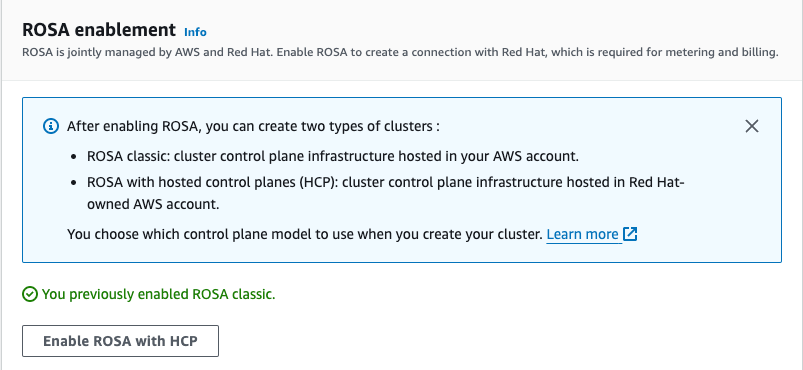
  • Login to the AWS management console to enable the ROSA with HCP
  • Click “Get started.”
  • Click “Enable ROSA with HCP”
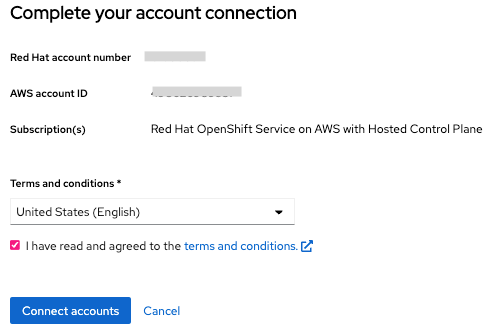
  • Connect to your AWS account
  • Open a terminal and run “rosa login” with your token from the link above using ROSA CLI.
$ rosa login --token="your_token_goes_here"
$ rosa create account-roles --mode auto
  • Create the Virtual Private Cloud using Terraform.
$ git clone https://github.com/openshift-cs/terraform-vpc-example
$ cd terraform-vpc-example
$ terraform init
$ terraform plan -out rosa.tfplan -var region=us-east-2 -var cluster_name=rosa-hcp

Note: If you want to create your own VPC for ROSA with HCP, you can replace this step with your VPC creation. The specific network requirements will be provided in the documentation referred to in the Reference section.

  • Run the following command.
$ terraform apply "rosa.tfplan"

output:

module.vpc.aws_eip.nat[0]: Creating...
module.vpc.aws_vpc.this[0]: Creating...
module.vpc.aws_eip.nat[0]: Creation complete after 0s [id=eipalloc-05b7778b52041c991]
module.vpc.aws_vpc.this[0]: Still creating... [10s elapsed]
module.vpc.aws_vpc.this[0]: Creation complete after 12s [id=vpc-02008794079e35f34]
module.vpc.aws_internet_gateway.this[0]: Creating...
module.vpc.aws_default_route_table.default[0]: Creating...
module.vpc.aws_route_table.public[0]: Creating...
module.vpc.aws_route_table.private[0]: Creating...
module.vpc.aws_subnet.public[0]: Creating...
...
Apply complete! Resources: 14 added, 0 changed, 0 destroyed.

Outputs:

cluster-private-subnets = [
"subnet-xxxxaa7e62b0cxxxx",
]
cluster-public-subnets = [
"subnet-xxxx9d32f9bfxxxx",
]
cluster-subnets-string = "subnet-xxxx9d32f9bfbxxxx,subnet-xxxxaa7e62b0cxxxx"
  • Make a note of the subnet IDs.
$ export SUBNET_IDS=$(terraform output -raw cluster-subnets-string)
  • Creating the account-wide STS roles and policies
$ rosa create account-roles --hosted-cp

output:

I: Logged in as 'shanna_chan' on 'https://api.openshift.com'
I: Validating AWS credentials...
I: AWS credentials are valid!
I: Validating AWS quota...
I: AWS quota ok. If cluster installation fails, validate actual AWS resource usage against https://docs.openshift.com/rosa/rosa_getting_started/rosa-required-aws-service-quotas.html
I: Verifying whether OpenShift command-line tool is available...
I: Current OpenShift Client Version: 4.13.5
I: Creating account roles
? Role prefix: ManagedOpenShift
? Permissions boundary ARN (optional):
? Path (optional):
? Role creation mode: auto
? Create Classic account roles: Yes
I: By default, the create account-roles command creates two sets of account roles, one for classic ROSA clusters, and one for Hosted Control Plane clusters.
In order to create a single set, please set one of the following flags: --classic or --hosted-cp
I: Creating classic account roles using
...
I: To create an OIDC Config, run the following command:
rosa create oidc-config

Notes: I used “ManagedOpenShift” as the account role prefix (default) in this example

  • Create OIDC config
$ rosa create oidc-config


interactive output:

? Would you like to create a Managed (Red Hat hosted) OIDC Configuration Yes
W: For a managed OIDC Config only auto mode is supported. However, you may choose the provider creation mode
? OIDC Provider creation mode: auto
I: Setting up managed OIDC configuration
I: To create Operator Roles for this OIDC Configuration, run the following command and remember to replace <user-defined> with a prefix of your choice:
rosa create operator-roles --prefix <user-defined> --oidc-config-id <oidc-config-id>
If you are going to create a Hosted Control Plane cluster please include '--hosted-cp'
I: Creating OIDC provider using 'arn:aws:iam::<acct-id>:user/shchan@redhat.com-nk2zr-admin'
? Create the OIDC provider? Yes
I: Created OIDC provider with ARN 'arn:aws:iam::<acct-id>:oidc-provider/rh-oidc.s3.us-east-1.amazonaws.com/<oidc-config-id>'

Notes:
<acct-id> and <oidc-config-id> are generated IDs from the command.

  • Set variable for OIDC_ID from the above output.
$ export OIDC_ID=<oidc-config-id>
  • List out all ODIC ID that is associated with your OCM login
$ rosa list oidc-config

Note: The newly created OIDC ID is listed here.

  • Create Operator roles
$ OPERATOR_ROLES_PREFIX=<prefix_name>
$ rosa create operator-roles --hosted-cp --prefix $OPERATOR_ROLES_PREFIX --oidc-config-id $OIDC_ID --installer-role-arn arn:aws:iam::000000000000:role/ManagedOpenShift-HCP-ROSA-Installer-Role

interactive output:

? Role creation mode: auto
? Operator roles prefix: demo
? Create hosted control plane operator roles: Yes
I: Using arn:aws:iam::000000000000:role/ManagedOpenShift-HCP-ROSA-Installer-Role for the Installer role
? Permissions boundary ARN (optional):
I: Reusable OIDC Configuration detected. Validating trusted relationships to operator roles:
I: Creating roles using ...
I: To create a cluster with these roles, run the following command:
rosa create cluster --sts --oidc-config-id oidc-config-id --operator-roles-prefix demo --hosted-cp

Where <prefix_name> can be anything and “installer-role-arn” value can be found from the output of the previous step.

  • Create ROSA with HCP cluster
$ rosa create cluster --sts --oidc-config-id $OIDC_ID --operator-roles-prefix demo --hosted-cp --subnet-ids $SUBNET_IDS


interactive output:

I: Enabling interactive mode
? Cluster name: rosa-hcp
? Deploy cluster with Hosted Control Plane: Yes
...
? External ID (optional):
? Operator roles prefix: demo
I: Reusable OIDC Configuration detected. Validating trusted relationships to operator roles:
? Tags (optional):
? AWS region: us-east-2
? PrivateLink cluster: No
? Machine CIDR: 10.0.0.0/16
? Service CIDR: 172.30.0.0/16
? Pod CIDR: 10.128.0.0/14
? Enable Customer Managed key: No
? Compute nodes instance type: m5.xlarge
? Enable autoscaling: No
? Compute nodes: 2
? Host prefix: 23
? Enable FIPS support: No
? Encrypt etcd data: No
? Disable Workload monitoring: No
? Use cluster-wide proxy: No
? Additional trust bundle file path (optional):
? Enable audit log forwarding to AWS CloudWatch: No
I: Creating cluster 'rosa-hcp'
I: To create this cluster again in the future, you can run:
rosa create cluster --cluster-name rosa-hcp --sts --role-arn arn:aws:iam::<account-id>:role/ManagedOpenShift-HCP-ROSA-Installer-Role --support-role-arn arn:aws:iam::<account-id>:role/ManagedOpenShift-HCP-ROSA-Support-Role --worker-iam-role arn:aws:iam::<account-id>:role/ManagedOpenShift-HCP-ROSA-Worker-Role --operator-roles-prefix demo --oidc-config-id <oidc-config-id> --region us-east-2 --version 4.14.4 --replicas 2 --compute-machine-type m5.xlarge --machine-cidr 10.0.0.0/16 --service-cidr 172.30.0.0/16 --pod-cidr 10.128.0.0/14 --host-prefix 23 --subnet-ids subnet-<subnet-ids> --hosted-cp
I: To view a list of clusters and their status, run 'rosa list clusters'
I: Cluster 'rosa-hcp' has been created.
I: Once the cluster is installed you will need to add an Identity Provider before you can login into the cluster. See 'rosa create idp --help' for more information.

...

I: When using reusable OIDC Config and resources have been created prior to cluster specification, this step is not required.
Run the following commands to continue the cluster creation:

rosa create operator-roles --cluster rosa-hcp
rosa create oidc-provider --cluster rosa-hcp

I: To determine when your cluster is Ready, run 'rosa describe cluster -c rosa-hcp'.
I: To watch your cluster installation logs, run 'rosa logs install -c rosa-hcp --watch'.

Note: If you are installing ROSA with HCP the first time and failing on the cluster creation, please check out the Troubleshooting section.

  • Click on to the cluster name and view logs or run run ‘rosa logs install -c rosa-hcp –watch’ in the CLI
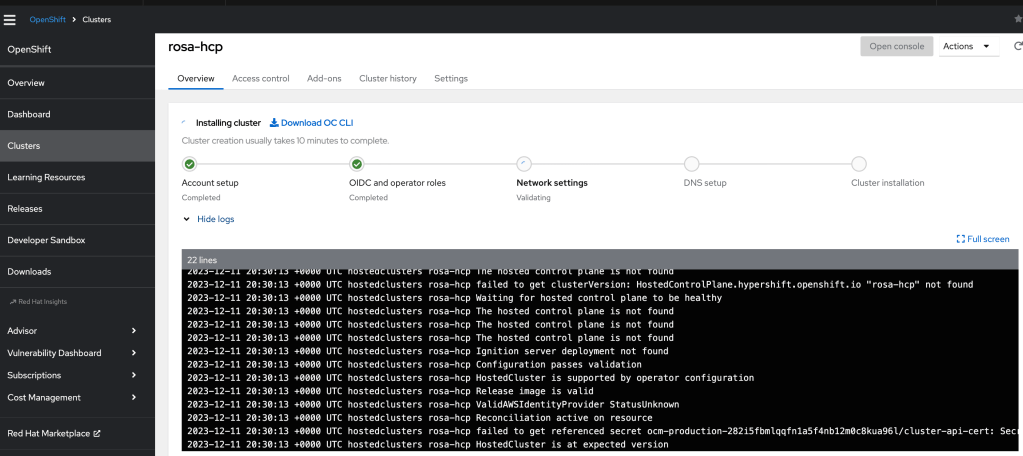
  • You can also check how many EC2 instances are created under your AWS account.

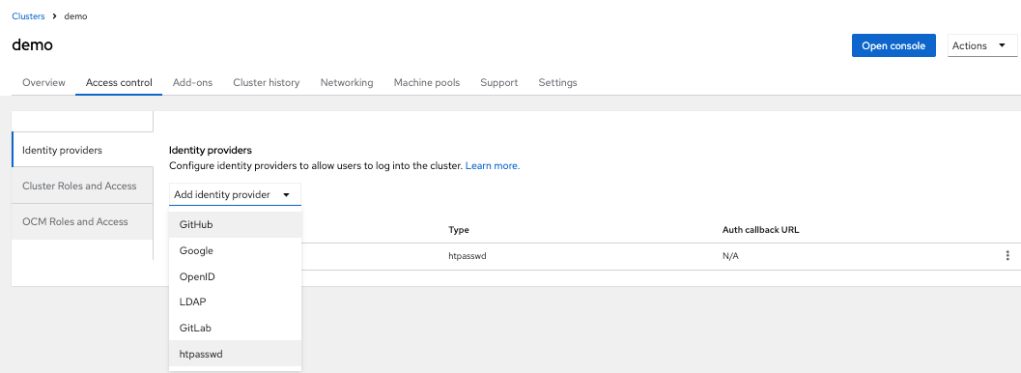
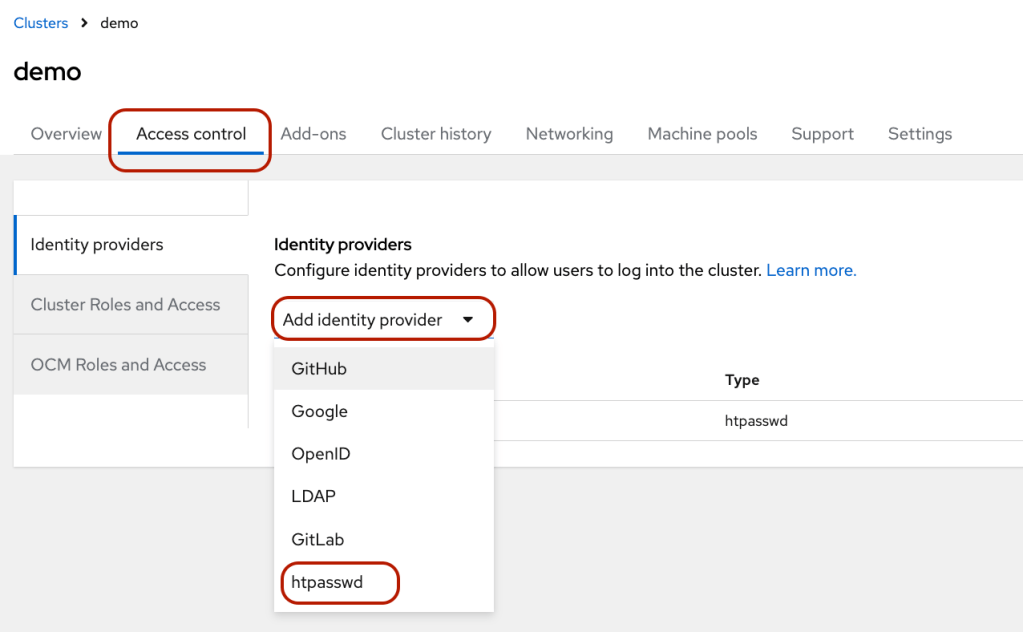
  • Once the installation is completed, you can create identity providers via the “Access control” tab. I added the user via “htpasswd.”
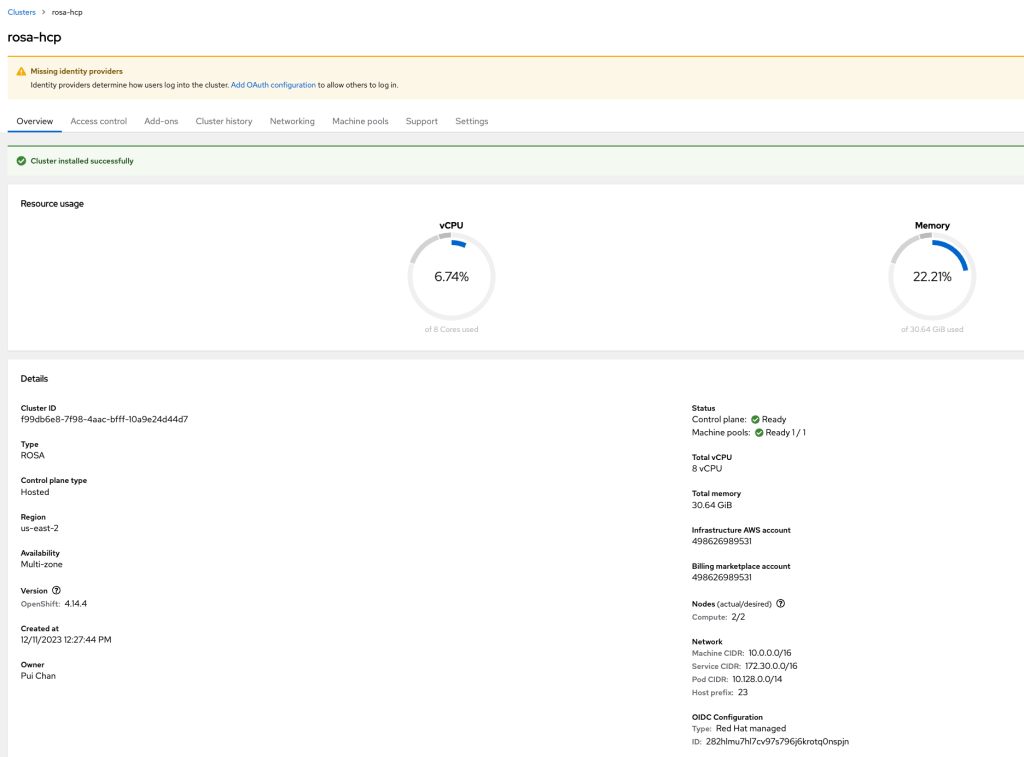
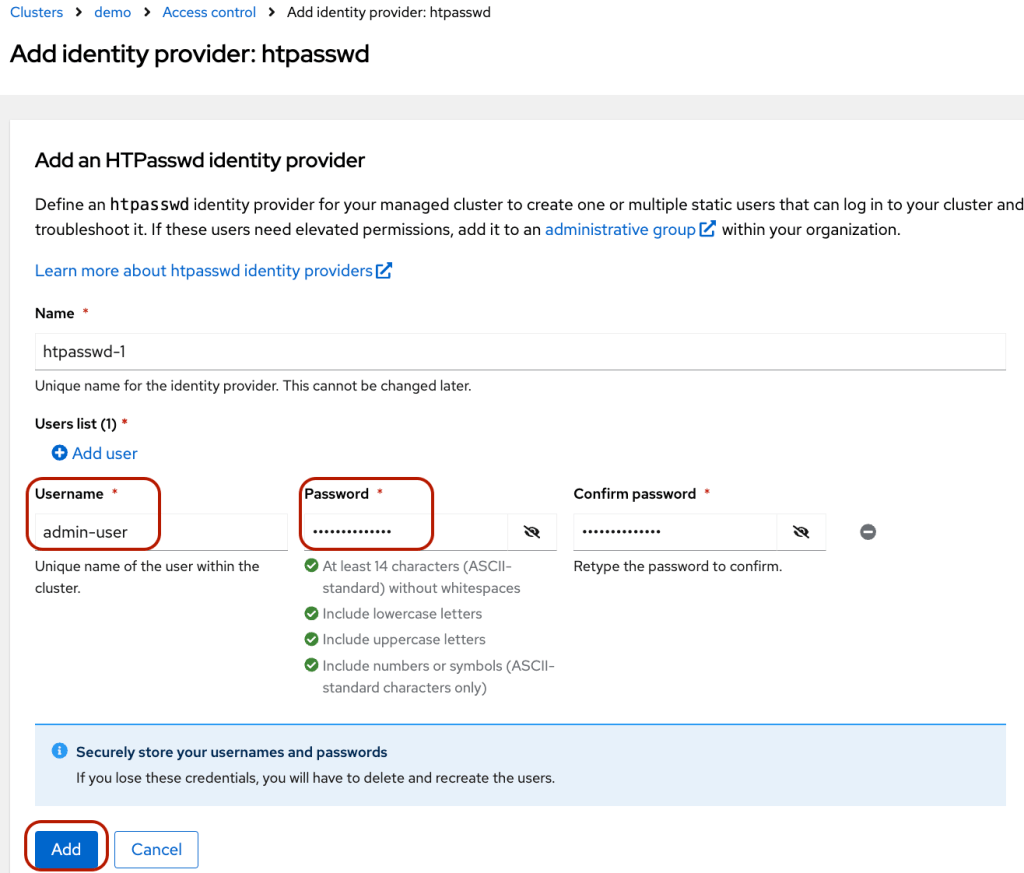
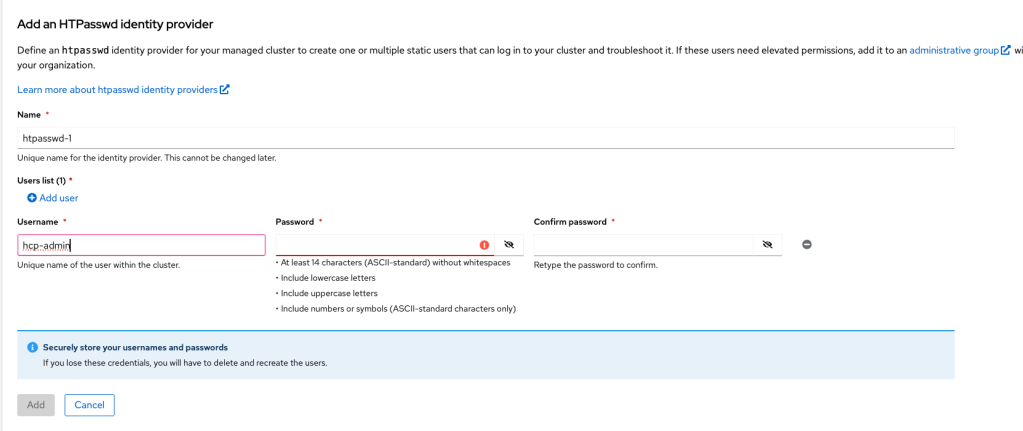
  • Create a user by clicking “htpasswd.”
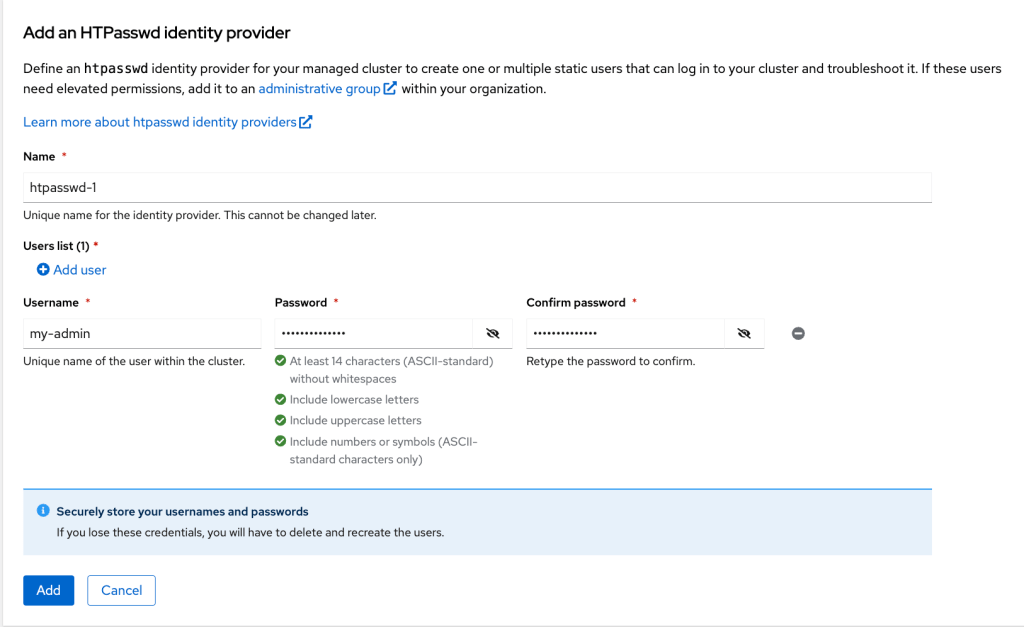
  • Enter username and password. Then, click “Add.”
  • Click the blue “Open Console” button to access the OpenShift.
  • Log in to the console using the newly created username.
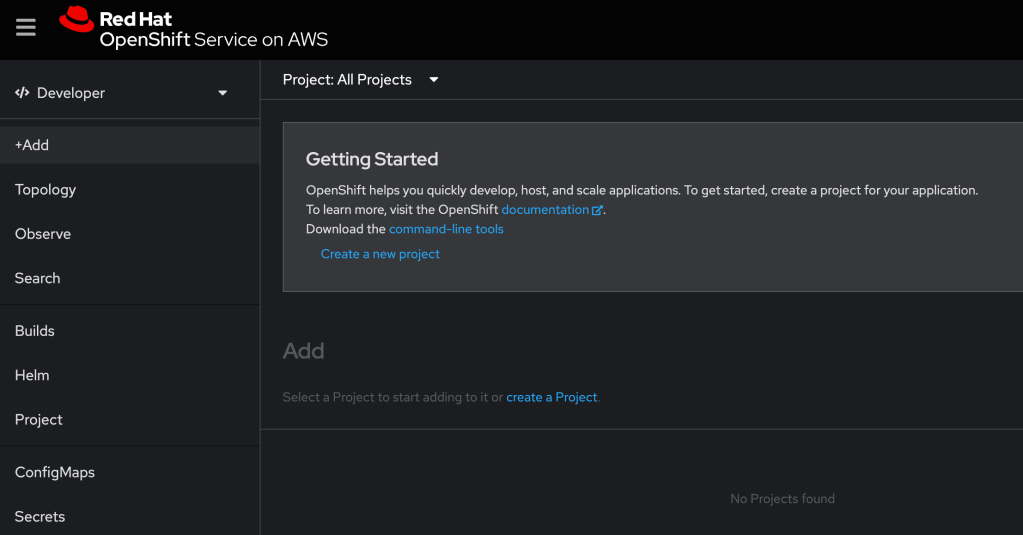
The cluster is ready for deploying applications.

Troubleshooting

  • Get the following error when creating the cluster.
E: Failed to create cluster: Account <ocm-user-account> missing required RedhatManagedCluster create permission

The solution is to add “OCM Cluster Provisioner” and “OCM Cluster Viewer” roles to the “Custom default access” group from https://console.redhat.com/iam/user-access/groups
References

OpenShift Extended Update Support (EUS)

Something I recently learned from testing the EUS to EUS process, and I like to share the steps here. Starting OpenShift Container Platform (OCP) 4.12, Red hat is adding an additional 6 months of Extended Update Support (EUS) on even-numbered OCP release for the x86_64 architecture.

We can upgrade from a EUS version to the next EUS version with only a single reboot of non-control plane hosts. There are caveats that are listed in the reference section below.

Steps to upgrade from 4.10.x to 4.12 using the EUS-to-EUS upgrade

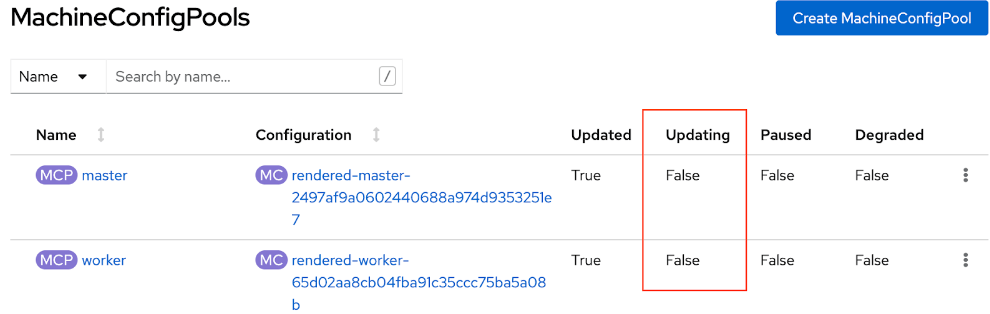
  • Verify that all machine config pools display a status of Up to date and that no machine config pool displays a status of “UPDATING.”
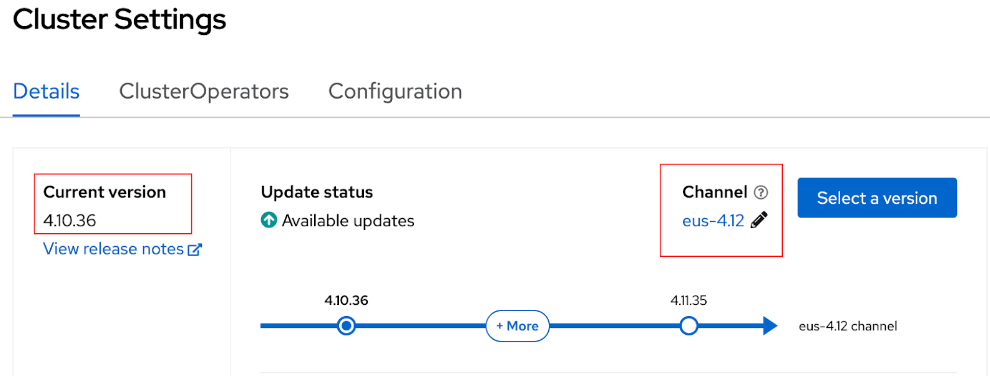
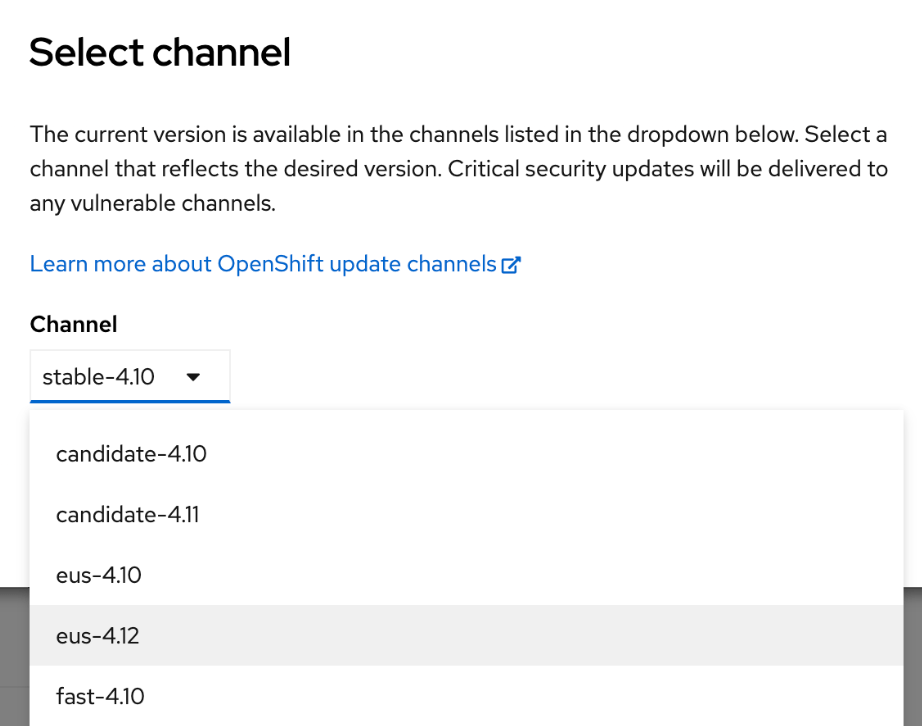
  • Set your channel to eus-<4.y+2>
  • The channel is set to eus-4.12
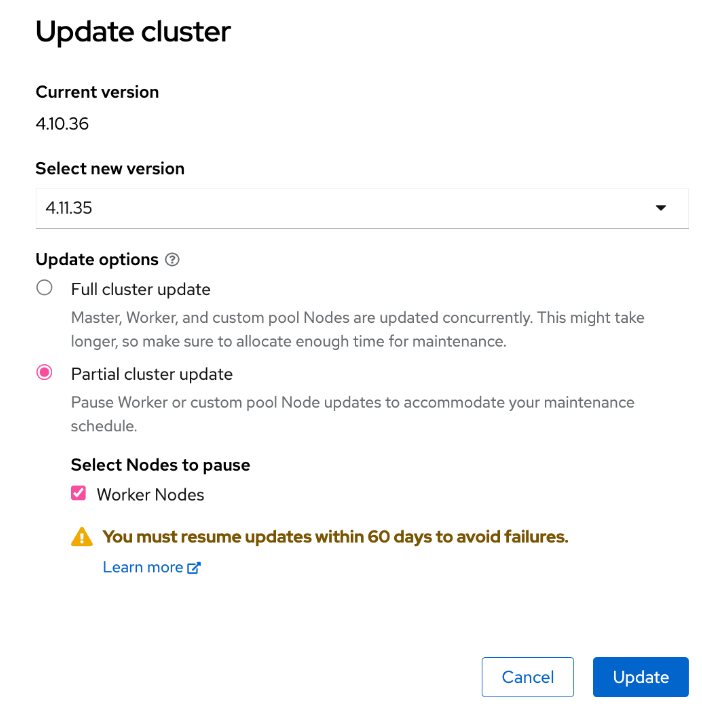
  • Pause all worker machine pools except for the master machine pool
  • Update 4+1 only with Partial cluster update
  • Wait for the partial upgrade to complete
  • Make sure the partial update is completed
  • No reboot for workers as noted that workers are paused on the K8S v 1.23
  • Check the OCP console
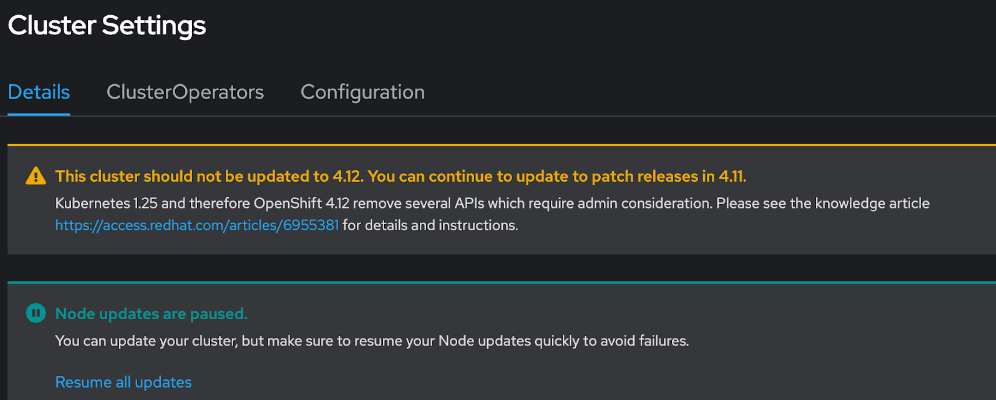
  • Check the KCS ​​https://access.redhat.com/articles/6955381. Review the k8s API version update and ensure the workloads are working properly and will be using the newly updated K8S API version.
  • Execute the following command:
    oc -n openshift-config patch cm admin-acks --patch '{"data":{"ack-4.11-kube-1.25-api-removals-in-4.12":"true"}}' --type=merge
  • OCP console shows
  • Click resume all updates
  • Double-check all machine pools. If updating, please wait for it to complete.
  • Upgrade completed and now showing OCP 4.12 (K8S v1.25)

Reference:

Installing OpenShift using Temporary Credentials

One of the most frequently asked questions recently is how to install OpenShift on AWS with temporary credentials. The default OpenShift provisioning using AWS key and secret, which requires the Administrator privileges. The temporary credential often refers to AWS Security Token Service (STS), which allows end-users to assume an IAM role resulting in short-lived credentials.

Developers or platform teams will require approval from their security team to access the company AWS account. It can be challenging in some organizations to get access to Administrator privileges.

OpenShift 4.7 support for AWS Secure Token Service in manual mode is in Tech Preview. I decided to explore a little deeper—the exercise based on the information both on the OpenShift documentation and the upstream repos. I am recording the notes from my test run. I hope you will find it helpful.

OpenShift 4 version

OCP 4.7.9

Build sts-preflight binary

git clone https://github.com/sjenning/sts-preflight.git
go get github.com/sjenning/sts-preflight
cd <sts-preflight directory>
go build .

Getting the AWS STS

As an AWS administrator, I found the sts-preflight tool helpful in this exercise. The documentation has the manual steps, but I choose to use the sts-preflight tool here.

  • Create STS infrastructure in AWS:
./sts-preflight  create --infra-name <sts infra name> --region <aws region>

# ./sts-preflight  create --infra-name sc-example --region us-west-1
2021/04/28 13:24:42 Generating RSA keypair
2021/04/28 13:24:56 Writing private key to _output/sa-signer
2021/04/28 13:24:56 Writing public key to _output/sa-signer.pub
2021/04/28 13:24:56 Copying signing key for use by installer
2021/04/28 13:24:56 Reading public key
2021/04/28 13:24:56 Writing JWKS to _output/keys.json
2021/04/28 13:24:57 Bucket sc-example-installer created
2021/04/28 13:24:57 OIDC discovery document at .well-known/openid-configuration updated
2021/04/28 13:24:57 JWKS at keys.json updated
2021/04/28 13:24:57 OIDC provider created arn:aws:iam::##########:oidc-provider/s3.us-west-1.amazonaws.com/sc-example-installer
2021/04/28 13:24:57 Role created arn:aws:iam::##########:role/sc-example-installer
2021/04/28 13:24:58 AdministratorAccess attached to Role sc-example-installer
  • Create an OIDC token:
# ./sts-preflight token
2021/04/28 13:27:06 Token written to _output/token
  • Get STS credential:
# ./sts-preflight assume
Run these commands to use the STS credentials
export AWS_ACCESS_KEY_ID=<temporary key>
export AWS_SECRET_ACCESS_KEY=<temporary secret>
export AWS_SESSION_TOKEN=<session token>
  • The above short-lived key, secret, and token can be given to the person who are installing OpenShift.
  • Export all the AWS environment variables before proceeding to installation.

Start the Installation

As a Developer or OpenShift Admin, you will get the temporary credentials information and export the AWS environment variables before installing the OCP cluster.

# oc adm release extract quay.io/openshift-release-dev/ocp-release:4.7.9-x86_64 --credentials-requests --cloud=aws --to=./credreqs ; cat ./credreqs/*.yaml > credreqs.yaml
  • Create install-config.yaml for installation:
# ./openshift-install create install-config --dir=./sc-sts
? SSH Public Key /root/.ssh/id_rsa.pub
? Platform aws
INFO Credentials loaded from default AWS environment variables
? Region us-east-1
? Base Domain sc.ocp4demo.live
? Cluster Name sc-sts
? Pull Secret [? for help] 
INFO Install-Config created in: sc-sts
  • Make sure that we install the cluster in Manual mode:
# cd sc-sts
# echo "credentialsMode: Manual" >> install-config.yaml
  • Create install manifests:
# cd ..
# ./openshift-install create manifests --dir=./sc-sts
  • Using the sts-preflight tool to create AWS resources. Make sure you are in the sts-preflight directory:
#./sts-preflight create --infra-name sc-example --region us-west-1 --credentials-requests-to-roles ./credreqs.yaml
2021/04/28 13:45:34 Generating RSA keypair
2021/04/28 13:45:42 Writing private key to _output/sa-signer
2021/04/28 13:45:42 Writing public key to _output/sa-signer.pub
2021/04/28 13:45:42 Copying signing key for use by installer
2021/04/28 13:45:42 Reading public key
2021/04/28 13:45:42 Writing JWKS to _output/keys.json
2021/04/28 13:45:42 Bucket sc-example-installer already exists and is owned by us
2021/04/28 13:45:42 OIDC discovery document at .well-known/openid-configuration updated
2021/04/28 13:45:42 JWKS at keys.json updated
2021/04/28 13:45:43 Existing OIDC provider found arn:aws:iam::000000000000:oidc-provider/s3.us-west-1.amazonaws.com/sc-example-installer
2021/04/28 13:45:43 Existing Role found arn:aws:iam::000000000000:role/sc-example-installer
2021/04/28 13:45:43 AdministratorAccess attached to Role sc-example-installer
2021/04/28 13:45:43 Role arn:aws:iam::000000000000:role/sc-example-openshift-machine-api-aws-cloud-credentials created
2021/04/28 13:45:43 Saved credentials configuration to: _output/manifests/openshift-machine-api-aws-cloud-credentials-credentials.yaml
2021/04/28 13:45:43 Role arn:aws:iam::000000000000:role/sc-example-openshift-cloud-credential-operator-cloud-credential- created
2021/04/28 13:45:44 Saved credentials configuration to: _output/manifests/openshift-cloud-credential-operator-cloud-credential-operator-iam-ro-creds-credentials.yaml
2021/04/28 13:45:44 Role arn:aws:iam::000000000000:role/sc-example-openshift-image-registry-installer-cloud-credentials created
2021/04/28 13:45:44 Saved credentials configuration to: _output/manifests/openshift-image-registry-installer-cloud-credentials-credentials.yaml
2021/04/28 13:45:44 Role arn:aws:iam::000000000000:role/sc-example-openshift-ingress-operator-cloud-credentials created
2021/04/28 13:45:44 Saved credentials configuration to: _output/manifests/openshift-ingress-operator-cloud-credentials-credentials.yaml
2021/04/28 13:45:45 Role arn:aws:iam::000000000000:role/sc-example-openshift-cluster-csi-drivers-ebs-cloud-credentials created
2021/04/28 13:45:45 Saved credentials configuration to: _output/manifests/openshift-cluster-csi-drivers-ebs-cloud-credentials-credentials.yaml
  • Copy the generated manifest files and tls directory from sts-preflight/_output directory to installation directory:
# cp sts-preflight/_output/manifests/* sc-scs/manifests/
# cp -a sts-preflight/_output/tls sc-scs/
  • I ran both ./sts-preflight token and ./sts-preflight assume again to make sure I have enough time to finish my installation
  • Export the AWS environment variables.
  • I did not further restrict the role in my test.
  • Start to provision a OCP cluster:
# ./openshift-install create cluster --log-level=debug --dir=./sc-sts
...
INFO Install complete!
INFO To access the cluster as the system:admin user when using 'oc', run 'export KUBECONFIG=/root/mufg-sts/sc-sts-test/auth/kubeconfig'
INFO Access the OpenShift web-console here: https://console-openshift-console.apps.sc-sts-test.xx.live
INFO Login to the console with user: "kubeadmin", and password: "xxxxxxxxxxx"
DEBUG Time elapsed per stage:
DEBUG     Infrastructure: 7m28s
DEBUG Bootstrap Complete: 11m6s
DEBUG  Bootstrap Destroy: 1m21s
DEBUG  Cluster Operators: 12m28s
INFO Time elapsed: 32m38s

#Cluster was created successfully.
  • Verify the components are assuming the IAM roles:
# oc get secrets -n openshift-image-registry installer-cloud-credentials -o json | jq -r .data.credentials | base64 --decode
[default]
role_arn = arn:aws:iam::000000000000:role/sc-sts-test-openshift-image-registry-installer-cloud-credentials
web_identity_token_file = /var/run/secrets/openshift/serviceaccount/token
  • Adding and deleting worker node works as well:
Increase the count from one of the MachineSets from Administrator console, worker node was able to provisioned.
Decrease the count from one of the MachineSets from Administrator console, worker node was deleted.

Delete the Cluster

  • Obtain a new temporary credential:
cd <sts-preflight directory>
# ./sts-preflight token
2021/04/29 08:19:01 Token written to _output/token

# ./sts-preflight assume
Run these commands to use the STS credentials
export AWS_ACCESS_KEY_ID=<temporary key>
export AWS_SECRET_ACCESS_KEY=<temporary secret>
export AWS_SESSION_TOKEN=<session token>
  • Export all AWS environment variables using the result output from last step
  • Delete the cluster:
# ./openshift-install destroy cluster --log-level=debug --dir=./sc-sts-test
DEBUG OpenShift Installer 4.7.9
DEBUG Built from commit fae650e24e7036b333b2b2d9dfb5a08a29cd07b1
INFO Credentials loaded from default AWS environment variables
DEBUG search for matching resources by tag in us-east-1 matching aws.Filter{"kubernetes.io/cluster/sc-sts-rj4pw":"owned"}
...
INFO Deleted                                       id=vpc-0bbacb9858fe280f9
INFO Deleted                                       id=dopt-071e7bf4cfcc86ad6
DEBUG search for matching resources by tag in us-east-1 matching aws.Filter{"kubernetes.io/cluster/sc-sts-test-rj4pw":"owned"}
DEBUG search for matching resources by tag in us-east-1 matching aws.Filter{"openshiftClusterID":"ab9baacf-a44f-47e8-8096-25df62c3b1dc"}
DEBUG no deletions from us-east-1, removing client
DEBUG search for IAM roles
DEBUG search for IAM users
DEBUG search for IAM instance profiles
DEBUG Search for and remove tags in us-east-1 matching kubernetes.io/cluster/sc-sts-test-rj4pw: shared
DEBUG No matches in us-east-1 for kubernetes.io/cluster/sc-sts-test-rj4pw: shared, removing client
DEBUG Purging asset "Metadata" from disk
DEBUG Purging asset "Master Ignition Customization Check" from disk
DEBUG Purging asset "Worker Ignition Customization Check" from disk
DEBUG Purging asset "Terraform Variables" from disk
DEBUG Purging asset "Kubeconfig Admin Client" from disk
DEBUG Purging asset "Kubeadmin Password" from disk
DEBUG Purging asset "Certificate (journal-gatewayd)" from disk
DEBUG Purging asset "Cluster" from disk
INFO Time elapsed: 4m39s

References

OpenShift Agent Installer on bare metal in a restricted environment

My goal for this post is to share my steps for installing OpenShift using Agent Installer in a restricted environment using a mirror registry.

My limitation is that my hardware is ancient 🙂 I used ESXi to simulate the bare metal hosts, but did not use vSphere as the provider for the installation.

My condition for this test:

  • I can only use static IP addresses (no DHCP).
  • RHEL 9 is the provision server with installed nmstatectl, oc CLI, oc mirror, and mirror registry.
  • I used Agent Installer to install 4.16.39, a three-node compact cluster.

High-level preparation steps:

  1. Set up the DNS
  2. Create a cert for the mirror registry
  3. Install mirror registry
  4. Update CA trust on the provision host
  5. Mirror the image from the source (quay.io)
  6. Create agent-config.yaml and install-config.yaml
    • agent-config.yaml must define the NTP servers (of your choice)
    • install-config.yaml’s pullSecret must include the mirror registry credential and the cert for the mirror registry.

Download links

My example DNS configuration

Install mirror registry

I used the Red Hat mirror registry (Quay). You can also mirror the images using Nexus, Jfrog, or Harbor. Please use the Reference [4] to generate certs.
Run the following command to install the mirror registry.

$ ./mirror-registry -v install --quayHostname bastion.example.com --quayRoot /opt/ocpmirror --initUser admin --initPassword admin123456 --quayStorage /opt/mirrorStorage --sslCert ssl.cert --sslKey ssl.key

Mirror the images

To mirror images using plugin v2, you must have downloaded the ‘oc’ and ‘oc mirror’ plug-ins.

Download pullSecret.txt and update the credentials for your environment.

Please use reference [2] to configure the pullSecret.json. The following commands can be used to validate the pullSecret file.

$podman login --authfile local.json -u $QUAY_USER -p $QUAY_PWD $QUAY_HOST_NAME:$QUAY_PORT --tls-verify=false

$jq -cM -s '{"auths": ( .[0].auths + .[1].auths ) }' local.json ~/pull-secret.txt > pull-secret.json

$podman login --authfile ./pull-secret.json quay.io
$podman login --authfile ./pull-secret.json registry.redhat.io
$podman login --authfile ./pull-secret.json $QUAY_HOST_NAME:$QUAY_PORT

My example imageSetConfiguration file

Run the following command to mirror the images to the mirror registry.

$ oc mirror --config imageSetConfiguration-v2-4.16.39.yaml --authfile /root/mirror-reg/pull-secret.json --workspace file:///opt/working-dir docker://bastion.example.com:8443/ocp4 --v2

Output from the ‘oc mirror’

Configuration files for the installation

  • agent-config.yaml
  • install-config.yaml

My example agent-config.yaml

apiVersion: v1beta1
kind: AgentConfig
metadata:
name: demo
additionalNTPSources:
- time1.google.com
- time2.google.com
rendezvousIP: 192.168.1.121
hosts:
- hostname: max1.ocp.example.com
rootDeviceHints:
deviceName: /dev/sda
interfaces:
- name: ens160
macAddress: 00:0c:29:5e:fe:f3
networkConfig:
interfaces:
- name: ens160
type: ethernet
state: up
mac-address: 00:0c:29:5e:fe:f3
ipv4:
enabled: true
address:
- ip: 192.168.1.121
prefix-length: 23
dhcp: false
dns-resolver:
config:
server:
- 192.168.1.188
routes:
config:
- destination: 0.0.0.0/0
next-hop-address: 192.168.1.188
next-hop-interface: ens160
table-id: 254
- hostname: max2.ocp.example.com
rootDeviceHints:
deviceName: /dev/sda
interfaces:
- name: ens160
macAddress: 00:0c:29:a7:4d:e0
networkConfig:
interfaces:
- name: ens160
type: ethernet
state: up
mac-address: 00:0c:29:a7:4d:e0
ipv4:
enabled: true
address:
- ip: 192.168.1.122
prefix-length: 23
dhcp: false
dns-resolver:
config:
server:
- 192.168.1.188
routes:
config:
- destination: 0.0.0.0/0
next-hop-address: 192.168.1.188
next-hop-interface: ens160
table-id: 254
- hostname: max3.ocp.example.com
rootDeviceHints:
deviceName: /dev/sda
interfaces:
- name: ens160
macAddress: 00:0c:29:59:2e:10
networkConfig:
interfaces:
- name: ens160
type: ethernet
state: up
mac-address: 00:0c:29:59:2e:10
ipv4:
enabled: true
address:
- ip: 192.168.1.123
prefix-length: 23
dhcp: false
dns-resolver:
config:
server:
- 192.168.1.188
routes:
config:
- destination: 0.0.0.0/0
next-hop-address: 192.168.1.188
next-hop-interface: ens160
table-id: 254

My example of install-config.yaml

apiVersion: v1
baseDomain: ocp.example.com
compute:
- name: worker
replicas: 0
controlPlane:
name: master
replicas: 3
metadata:
name: demo
networking:
clusterNetwork:
- cidr: 10.128.0.0/14
hostPrefix: 23
machineNetwork:
- cidr: 192.168.0.0/23
networkType: OVNKubernetes
serviceNetwork:
- 172.30.0.0/16
platform:
baremetal:
hosts:
- name: max1.ocp.example.com
role: master
bootMACAddress: 00:0c:29:5e:fe:f3
- name: max2.ocp.example.com
role: master
bootMACAddress: 00:0c:29:a7:4d:e0
- name: max3.ocp.example.com
role: master
bootMACAddress: 00:0c:29:59:2e:10
apiVIPs:
- 192.168.1.126
ingressVIPs:
- 192.168.1.125
fips: false
pullSecret: '{"auths":{"..."}}}'
sshKey: 'ssh-rsa … root@bastion.example.com'
imageContentSources:
- mirrors:
- bastion.example.com:8443/ocp4/openshift/release-images
source: quay.io/openshift-release-dev/ocp-release
- mirrors:
- bastion.example.com:8443/ocp4/openshift/release
source: quay.io/openshift-release-dev/ocp-v4.0-art-dev
additionalTrustBundle: |
-----BEGIN CERTIFICATE-----

-----END CERTIFICATE-----

Steps that I took before booting up the hosts

  1. I created VMs (bare metal hosts) on my ESXi host. Because I am using an ESXi host, I can get the MAC addresses from the UI.
  2. Add the MAC addresses to the agent-install.yaml
  3. Make a directory. I use ‘demo’ in my example here.
  4. Copy agent-config.yaml and install-config.yaml to the demo directory.
  5. Run the following command to create the ISO from the parent of the demo directory. The command will output agent.x86_64.iso to the demo directory.
$ openshift-install --dir demo agent create image

Now you have to ISO to boot all the hosts

  1. Upload the ISO to the ESXi datastore
  2. Configure all bare metal hosts (VM in my case) to boot with the agent.x86_64.iso
  3. Boot all three hosts in sequence and run the command below.
$./openshift-install --dir demo agent wait-for bootstrap-complete  --log-level=info

You will monitor the status of the bootstrap from the output. (It took a while to complete, as you can see)

[root@bastion ~]# ./openshift-install --dir demo agent create image
WARNING imageContentSources is deprecated, please use ImageDigestSources
INFO Configuration has 3 master replicas and 0 worker replicas
WARNING hosts from install-config.yaml are ignored
WARNING The imageDigestSources configuration in install-config.yaml should have at least one source field matching the releaseImage value bastion.example.com:8443/ocp4/openshift/release-images@sha256:2754cd66072e633063b6bf26446978102f27dd19d4668b20df2c7553ef9ee4cf
WARNING Certificate 2020B78FC3BA75A644FD58F757EFAE86C81FA384 from additionalTrustBundle is x509 v3 but not a certificate authority
INFO The rendezvous host IP (node0 IP) is 192.168.1.121
INFO Extracting base ISO from release payload
INFO Verifying cached file
INFO Using cached Base ISO /root/.cache/agent/image_cache/coreos-x86_64.iso
INFO Consuming Agent Config from target directory
INFO Consuming Install Config from target directory
INFO Generated ISO at demo/agent.x86_64.iso
[root@bastion ~]# ./openshift-install --dir demo agent wait-for bootstrap-complete --log-level=info
INFO Waiting for cluster install to initialize. Sleeping for 30 seconds
INFO Cluster is not ready for install. Check validations

INFO Host max2.ocp.example.com: calculated role is master
INFO Cluster validation: api vips 192.168.1.126 belongs to the Machine CIDR and is not in use.
INFO Cluster validation: ingress vips 192.168.1.125 belongs to the Machine CIDR and is not in use.
INFO Cluster validation: The cluster has the exact amount of dedicated control plane nodes.
INFO Host 946b4d56-fef7-9683-5b01-6405c8592e10: Successfully registered
WARNING Host max1.ocp.example.com validation: No connectivity to the majority of hosts in the cluster
WARNING Host max3.ocp.example.com validation: No connectivity to the majority of hosts in the cluster
WARNING Host max3.ocp.example.com validation: Host couldn't synchronize with any NTP server
WARNING Host max2.ocp.example.com validation: No connectivity to the majority of hosts in the cluster
INFO Host max2.ocp.example.com: calculated role is master
INFO Host max1.ocp.example.com validation: Host has connectivity to the majority of hosts in the cluster
INFO Host max2.ocp.example.com validation: Host has connectivity to the majority of hosts in the cluster
INFO Host max3.ocp.example.com validation: Host has connectivity to the majority of hosts in the cluster
INFO Host max3.ocp.example.com: updated status from insufficient to known (Host is ready to be installed)
INFO Preparing cluster for installation
INFO Cluster validation: All hosts in the cluster are ready to install.
INFO Host max3.ocp.example.com: updated status from known to preparing-for-installation (Host finished successfully to prepare for installation)
INFO Host max1.ocp.example.com: New image status quay.io/openshift-release-dev/ocp-v4.0-art-dev@sha256:a0fac1616598bda78643c7351837d412f822d49adc20b8f9940490f080310c92. result: success. time: 8.93 seconds; size: 411.27 Megabytes; download rate: 48.31 MBps
INFO Host max1.ocp.example.com: updated status from preparing-for-installation to preparing-successful (Host finished successfully to prepare for installation)
INFO Host max2.ocp.example.com: New image status quay.io/openshift-release-dev/ocp-v4.0-art-dev@sha256:a0fac1616598bda78643c7351837d412f822d49adc20b8f9940490f080310c92. result: success. time: 7.68 seconds; size: 411.27 Megabytes; download rate: 56.14 MBps
INFO Host max2.ocp.example.com: updated status from preparing-for-installation to preparing-successful (Host finished successfully to prepare for installation)
INFO Host max3.ocp.example.com: updated status from preparing-for-installation to preparing-successful (Host finished successfully to prepare for installation)
INFO Cluster installation in progress
INFO Host max3.ocp.example.com: updated status from preparing-successful to installing (Installation is in progress)
INFO Host: max2.ocp.example.com, reached installation stage Starting installation: master
INFO Host: max1.ocp.example.com, reached installation stage Installing: master
INFO Host: max2.ocp.example.com, reached installation stage Writing image to disk: 5%

INFO Host: max3.ocp.example.com, reached installation stage Writing image to disk: 100%
INFO Bootstrap Kube API Initialized
INFO Host: max1.ocp.example.com, reached installation stage Waiting for control plane: Waiting for masters to join bootstrap control plane
INFO Host: max2.ocp.example.com, reached installation stage Rebooting
INFO Host: max2.ocp.example.com, reached installation stage Configuring
INFO Host: max3.ocp.example.com, reached installation stage Rebooting
INFO Host: max3.ocp.example.com, reached installation stage Configuring
INFO Host: max3.ocp.example.com, reached installation stage Joined
INFO Host: max1.ocp.example.com, reached installation stage Waiting for bootkube
INFO Host: max3.ocp.example.com, reached installation stage Done
INFO Host: max1.ocp.example.com, reached installation stage Waiting for bootkube: waiting for ETCD bootstrap to be complete
INFO Bootstrap configMap status is complete
INFO Bootstrap is complete
INFO cluster bootstrap is complete

When bootstrap is completed …

Run the following command to wait for the installation to be completed.

$ ./openshift-install --dir demo agent wait-for install-complete

Now you can sit back and wait for it to complete.

[root@bastion ~]# ./openshift-install --dir demo agent wait-for install-complete
INFO Cluster installation in progress
WARNING Host max1.ocp.example.com validation: Host couldn't synchronize with any NTP server
INFO Host: max1.ocp.example.com, reached installation stage Waiting for controller: waiting for controller pod ready event
INFO Bootstrap Kube API Initialized
INFO Bootstrap configMap status is complete
INFO Bootstrap is complete
INFO cluster bootstrap is complete
INFO Cluster is installed
INFO Install complete!
INFO To access the cluster as the system:admin user when using 'oc', run
INFO export KUBECONFIG=/root/demo/auth/kubeconfig
INFO Access the OpenShift web-console here: https://console-openshift-console.apps.demo.ocp.example.com
INFO Login to the console with user: "kubeadmin", and password: "xxxxx-xxxxx-xxxxx-xxxxx"

Congratulations to me! I have successfully completed the installation.

Reference:

ROSA HCP Cost management

I tried to trace the cost for ROSA HCP service from the AWS console and thought I could just get the report from the AWS billing feature. However, the Cost Explorer did not provide the ROSA HCP charges from the AWS console.

I am setting up the OpenShift Cost Management Operator and exploring if I can get the necessary information.

Step to set up Cost Management Operator

  • Log in to the OpenShift Console as an administrator
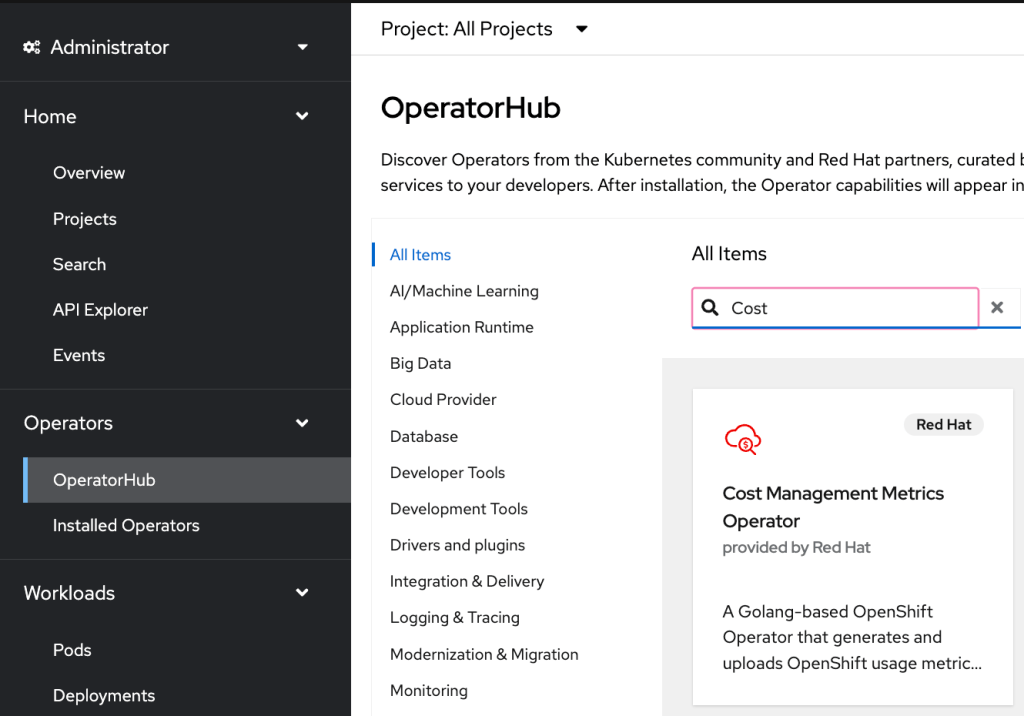
  • Go to Operators under the left menu and click OperatorHub, click on Cost Management Metrics Operator
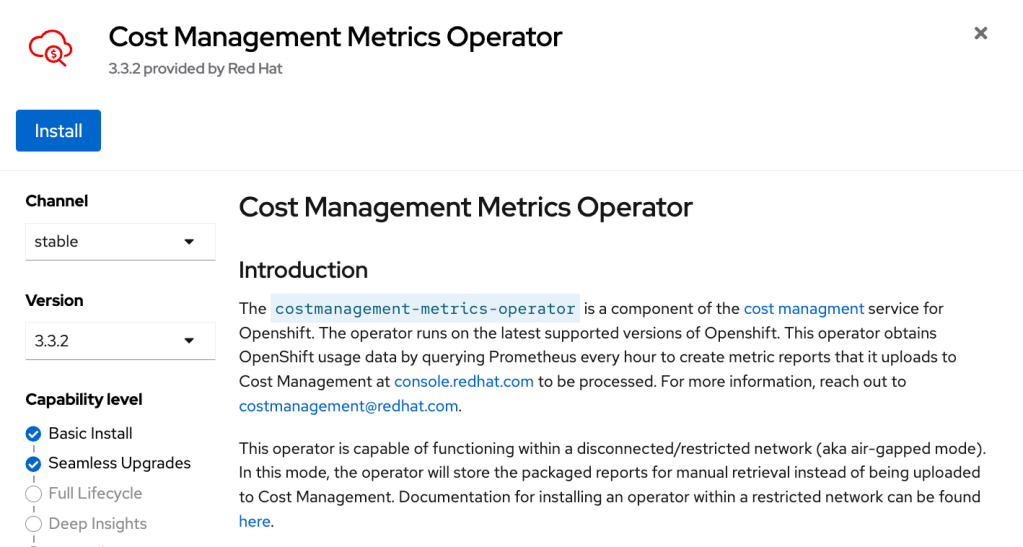
  • Click “Install”
  • Take the default value and click “Install.”
  • Wait for the Operator to completed the installation
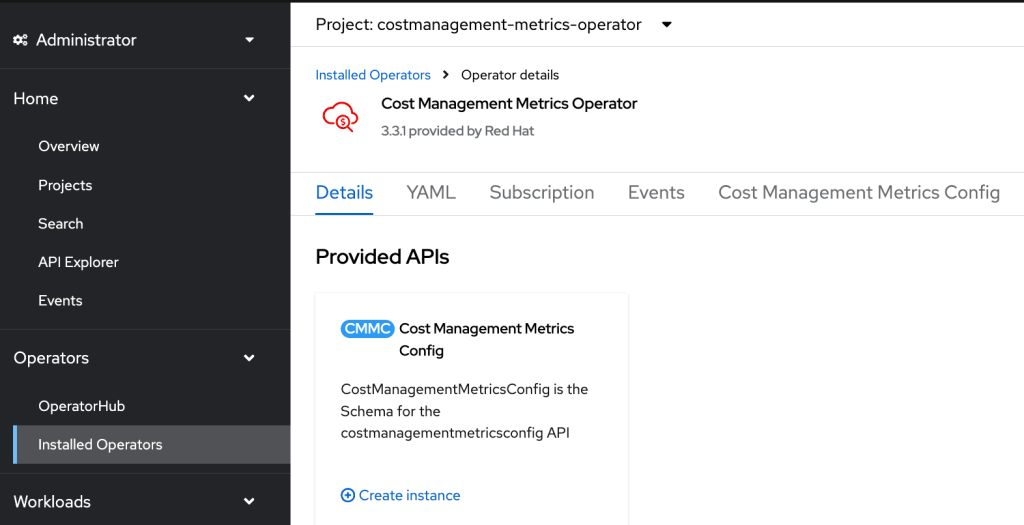
  • Go to Operators under the left menu and click Installed Operators
  • The “Cost Management Metrics Operator” should be on the list, and click on it
  • Click “Create instance”
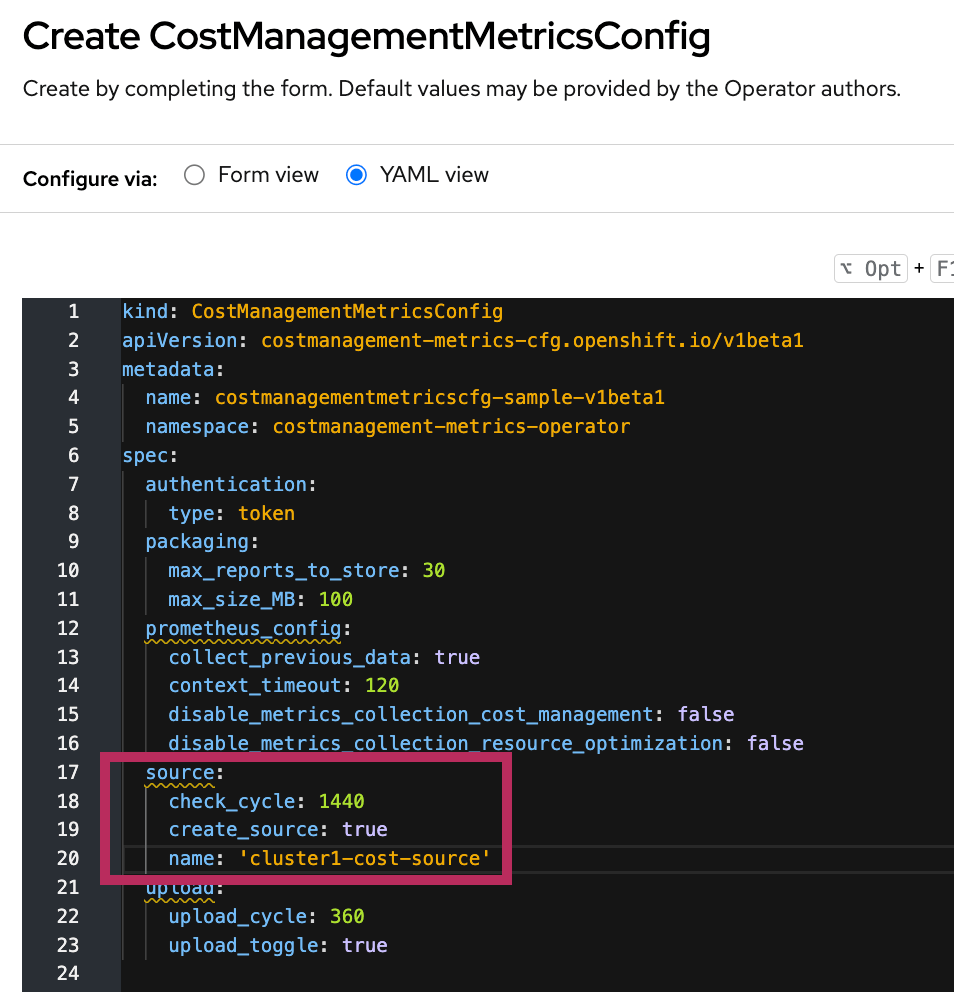
  • The YAML view for the CostManagementMetricsConfig under the project costmanagement-metrics-operator, update the source in the YAML with “create_source: true” and a name for the source.
  • Click “Create.”

Set up on the Red Hat Hybrid Cloud Console

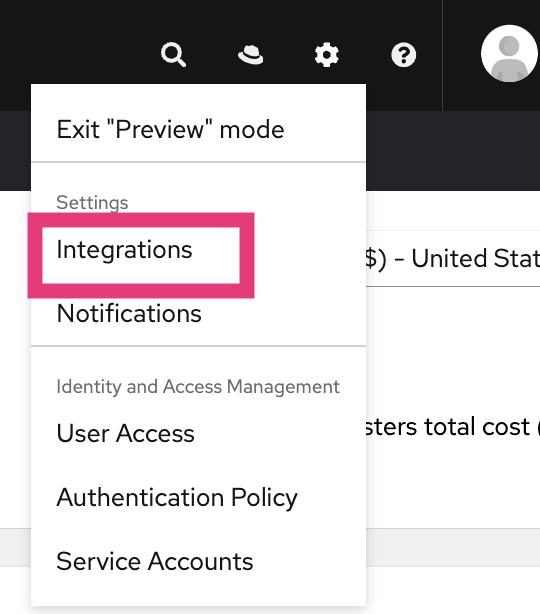
  • Once you log into the Red Hat Hybrid Cloud Console (OCM), you will find the integration setting as shown below.
  • Click integration. The source name was added to the cost management operator CR should show up here under the “Red Hat” tab.
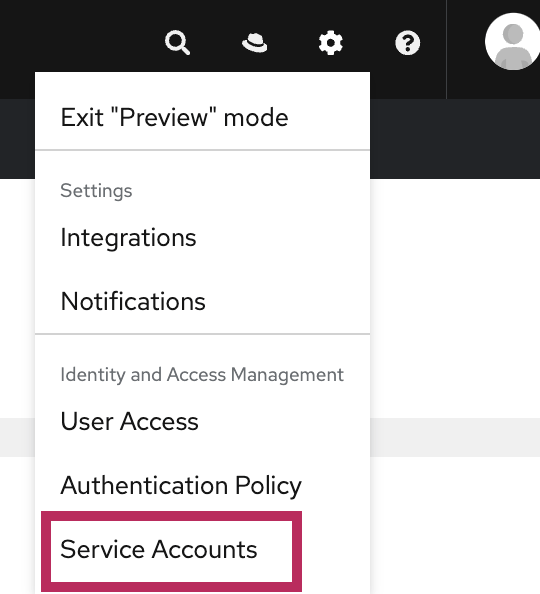
  • Click Integration Setting and select Service Accounts
  • Click “Create service account” and enter the name & description of service account.
  • Click “Create.”
  • Copy the “client id” and “client secret.”
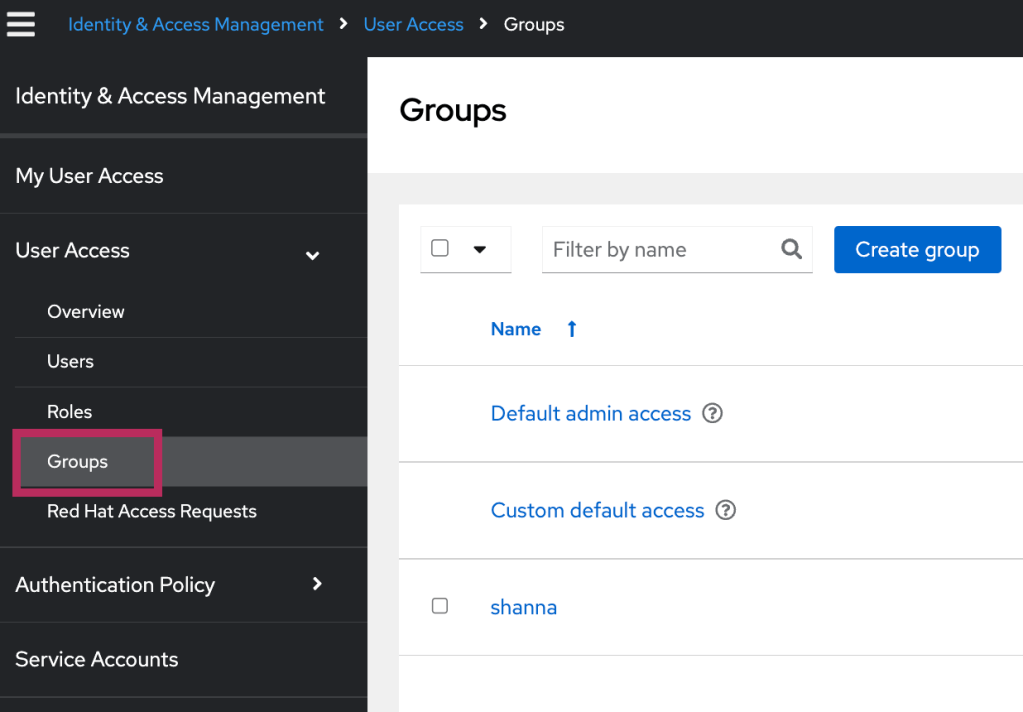
  • Under “User Access” on the left menu, select “Groups.”
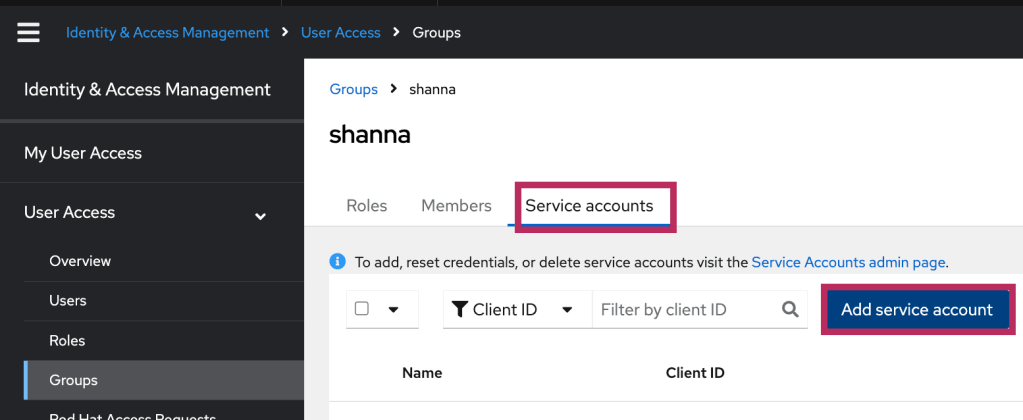
  • Click on the group with cost management roles -> click the “Service accounts” tab -> click “Add service account.”
  • Select the newly created service account from the last step -> click “Add to group.”

Update the Cost Management CR with the service account

  • Log in to the OpenShift Console as an administrator
  • Create a secret for the service account we created in the last step.
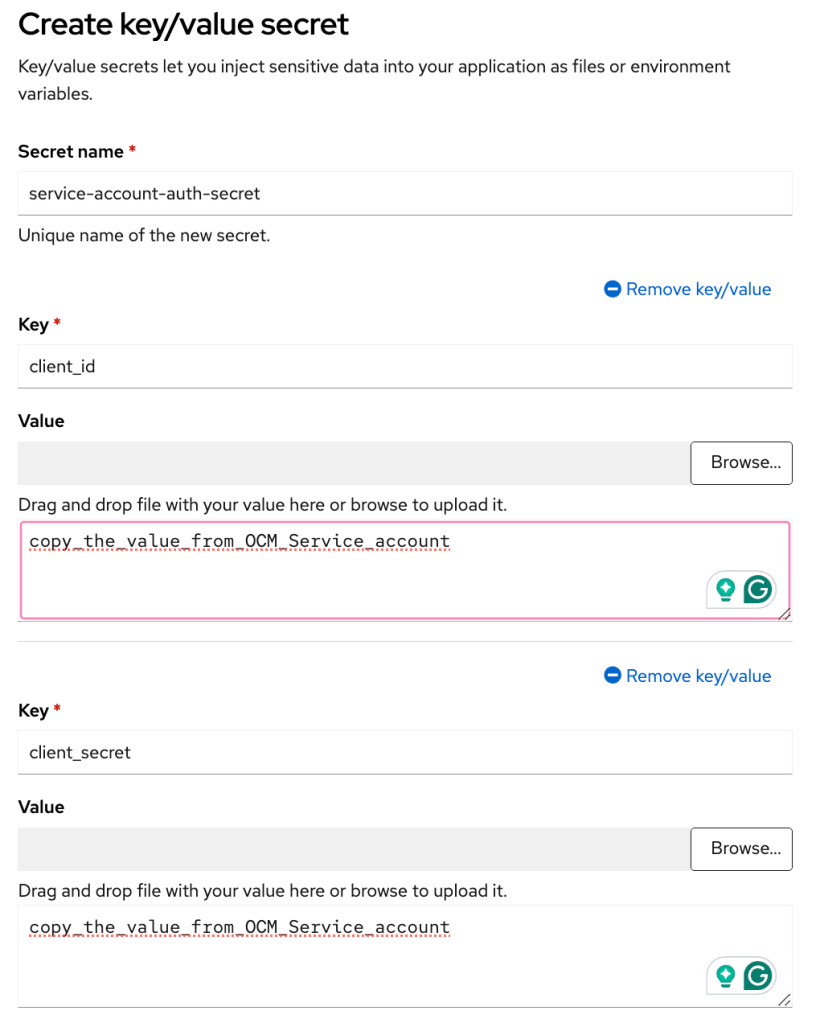
  • Will need to use the copied “client_id” and “client_secret” from the service account.
  • Under the project “costmanagement-metrics-operator, click create -> select Key/Value secret
  • Add the values for “client_id” and “client_secret” and click “Create.”
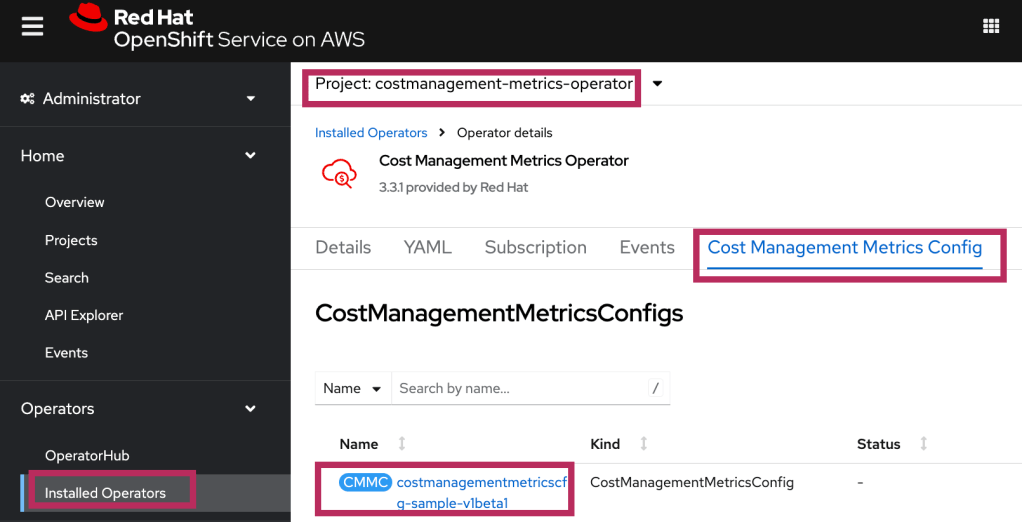
  • Go to Operators under the left menu and click Installed Operators
  • Click “Cost Management Metrics Operator” -> Click “Cost Management Metic Config” tab -> click the CMMC CR
  • Under the YAML view, update the value of the secret_name and type under “authentication” section. The name of the secret matches the name of the secret you created in the previous step.
  • Click “Save.”
  • Use OCP CLI to run this command:
$ oc label namespace costmanagement-metrics-operator insights_cost_management_optimizations='true' 
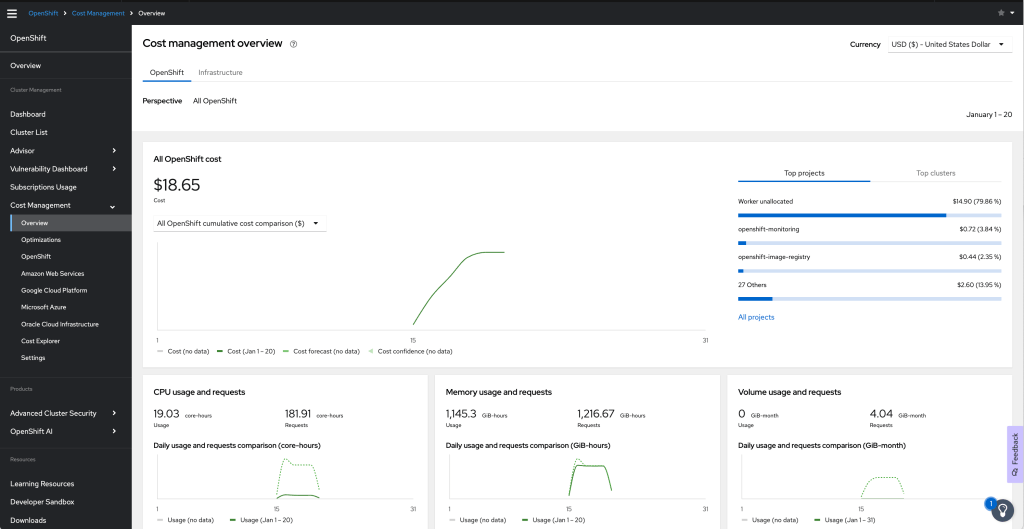
  • Go back to OCM console -> Red Hat OpenShift service -> cost management.
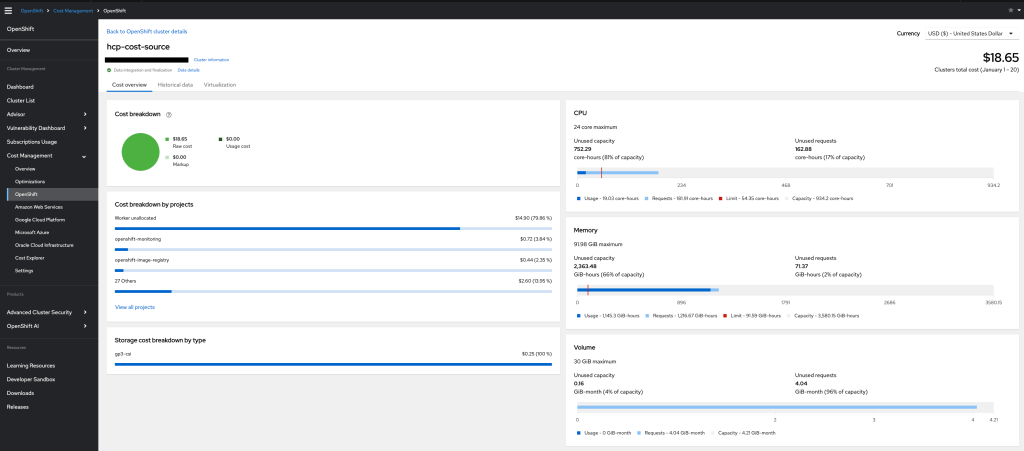
  • I can filter the view per cluster under Cost Management -> OpenShift using group by “Cluster.” Below is a view of a cluster
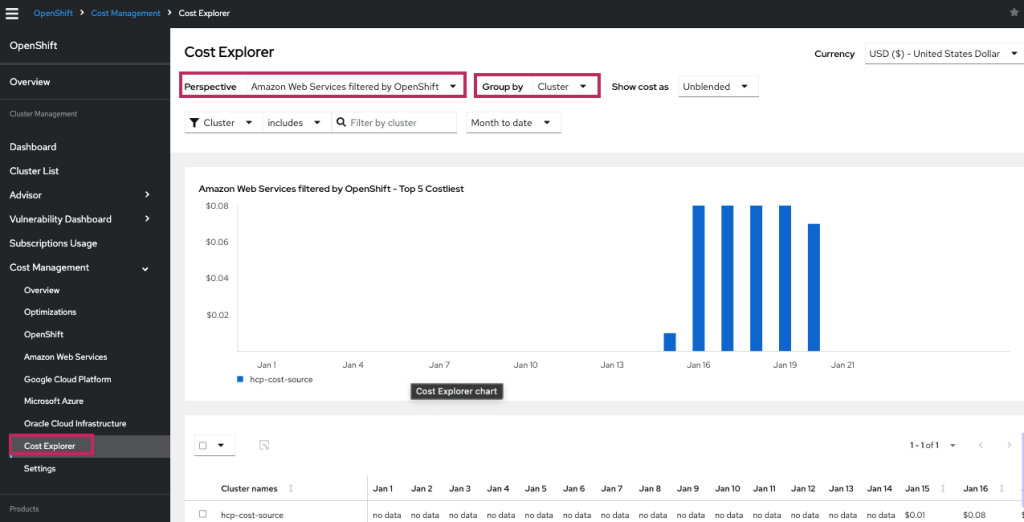
  • Click “Cost Explorer” under “Cost Management” on the menu -> select “Amazon Web Service filtered by OpenShift” under Perspective and select “Group by cluster”

The terminology “filtered by OpenShift” describes the portion of the cloud provider’s cost associated with running an OpenShift cluster. When both a cloud provider and OpenShift source have been added with matching tags or resource ids in the cost reports, Cost Management can correlate the two reports to calculate how much of your cloud provider cost is related to running OpenShift.

Reference:

Testing out ACK controller for S3 on ROSA classic cluster

High Level Steps:

  • Create a ROSA classic 4.16.4 cluster
  • Install AWS Controllers for Kubernetes – Amazon S3 operator
  • Create a bucket via the ACK controller Operator

Step-by-Step guide:

  • Create a ROSA classic cluster 4.16.4. I have recorded my command for my test below using the default option per the ROSA documentation.
$ rosa login --token="<my-token>"
$ rosa create ocm-role
$ rosa create user-role
$ rosa list account-roles
$ rosa create account-roles
$ rosa create oidc-config --mode=auto --yes
$ rosa create operator-roles --prefix demo --oidc-config-id <oidc-id>
$ rosa create cluster --sts --oidc-config-id <oidc-id> --operator-roles-prefix demo --sts --mode auto

Visit the link in the Reference section for details. In my test, I used a new AWS account and had to enable the ROSA service from the AWS management console. Also, I already have a Red Hat Hybrid cloud console (OCM) account.

  • Create a cluster admin via OCM.
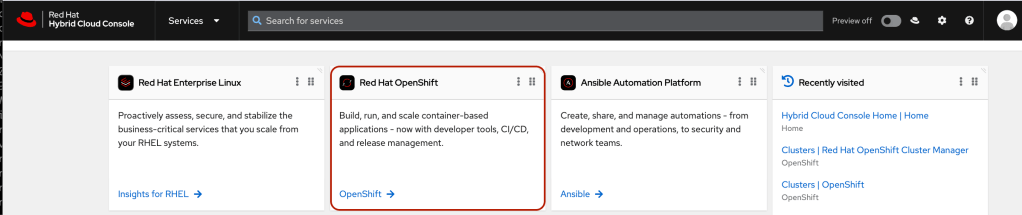
  • Click on the Red Hat OpenShift tile from the OCM landing page
  • Click on the newly created cluster
  • Click Access Control tab and select htpasswd under the “Add identity provider”
  • Add user and password information and click “Add”
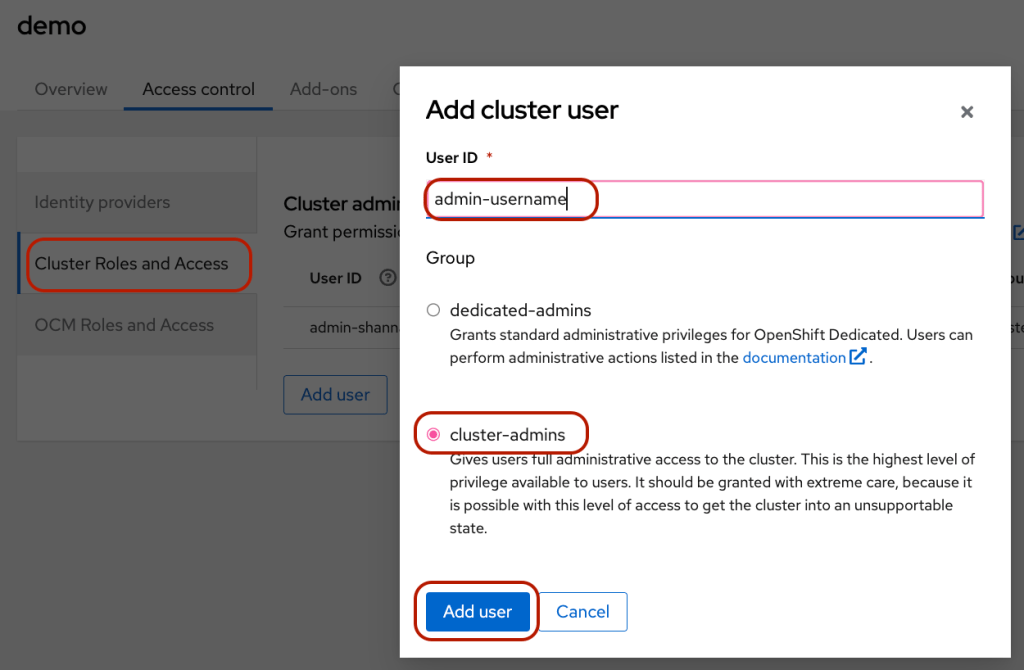
  • Click on the “Cluster Roles and Access” side tab –> click “Add user” –> select “cluster-admin” –> add the newly added admin username under the User ID.
  • Click the blue “Open console” button to log in to OpenShift Console using the newly created user.
  • I used the ROSA documentation to configure the ACK servicer controller for S3, and I made some minor modifications since I found some mistakes on the docs. I used CLI to install and configure the Operator and recorded the steps here.
$ oc login -u <admin-user> <api-url>
$ export CLUSTER_NAME=$(oc get infrastructure cluster -o=jsonpath="{.status.infrastructureName}" | sed 's/-[a-z0-9]{5}$//')
$ export REGION=$(rosa describe cluster -c ${CLUSTER_NAME} --output json | jq -r .region.id)
$ export OIDC_ENDPOINT=$(oc get authentication.config.openshift.io cluster -o json | jq -r .spec.serviceAccountIssuer | sed 's|^https://||')
$ export AWS_ACCOUNT_ID=aws sts get-caller-identity --query Account --output text
$ export ACK_SERVICE=s3
$ export ACK_SERVICE_ACCOUNT=ack-${ACK_SERVICE}-controller
$ export POLICY_ARN=arn:aws:iam::aws:policy/AmazonS3FullAccess
$ export AWS_PAGER=""
$ export SCRATCH="./tmp/${ROSA_CLUSTER_NAME}/ack"
$ mkdir -p ${SCRATCH}

Make sure you use the consistent variable names.

  • Create a trust policy for ACK operator
$ cat <<EOF > "${SCRATCH}/trust-policy.json"
{
"Version": "2012-10-17",
"Statement": [
{
"Effect": "Allow",
"Condition": {
"StringEquals" : {
"${OIDC_ENDPOINT}:sub": "system:serviceaccount:ack-system:${ACK_SERVICE_ACCOUNT}"
}
},
"Principal": {
"Federated": "arn:aws:iam::$AWS_ACCOUNT_ID:oidc-provider/${OIDC_ENDPOINT}"
},
"Action": "sts:AssumeRoleWithWebIdentity"
}
]
}
EOF
  • Create AWS IAM ROLE for the ACK operator
$ ROLE_ARN=$(aws iam create-role --role-name "ack-${ACK_SERVICE}-controller" \
--assume-role-policy-document "file://${SCRATCH}/trust-policy.json" \
--query Role.Arn --output text)
$ aws iam attach-role-policy --role-name "ack-${ACK_SERVICE}-controller" \
--policy-arn ${POLICY_ARN}
  • Configure OpenShift to install ACK operator
$ oc new-project ack-system

## note I added RECONCILE_DEFAULT_MAX_CONCURRENT_SYNCS to the configmap
$ cat <<EOF > "${SCRATCH}/config.txt"
ACK_ENABLE_DEVELOPMENT_LOGGING=true
ACK_LOG_LEVEL=debug
ACK_WATCH_NAMESPACE=
AWS_REGION=${REGION}
AWS_ENDPOINT_URL=
ACK_RESOURCE_TAGS=${CLUSTER_NAME}
ENABLE_LEADER_ELECTION=true
LEADER_ELECTION_NAMESPACE=
RECONCILE_DEFAULT_MAX_CONCURRENT_SYNCS='1'
EOF
$ oc -n ack-system create configmap \
--from-env-file=${SCRATCH}/config.txt ack-${ACK_SERVICE}-user-config
  • Install ACK S3 operator from OperatorHub
$ cat << EOF | oc apply -f -
apiVersion: operators.coreos.com/v1
kind: OperatorGroup
metadata:
name: ack-${ACK_SERVICE}-controller
namespace: ack-system
spec:
upgradeStrategy: Default
---
apiVersion: operators.coreos.com/v1alpha1
kind: Subscription
metadata:
name: ack-${ACK_SERVICE}-controller
namespace: ack-system
spec:
channel: alpha
installPlanApproval: Automatic
name: ack-${ACK_SERVICE}-controller
source: community-operators
sourceNamespace: openshift-marketplace
EOF
  • Annotate the ACK S3 Operator service account with the AWS IAM role
$ oc create sa ack-s3-controller
$ oc -n ack-system annotate serviceaccount ${ACK_SERVICE_ACCOUNT} \
eks.amazonaws.com/role-arn=${ROLE_ARN} && \
oc -n ack-system rollout restart deployment ack-${ACK_SERVICE}-controller
  • Validate the operator pod
$ oc -n ack-system get pods
NAME READY STATUS RESTARTS AGE
ack-s3-controller-5785d5fbc-qv86g 1/1 Running 0 129
  • Create a S3 bucket via ACK S3 operator
  • Login to OpenShift console -> click Operators on the left nav -> Installed Operators
  • Click Bucket link –> click Create Bucket
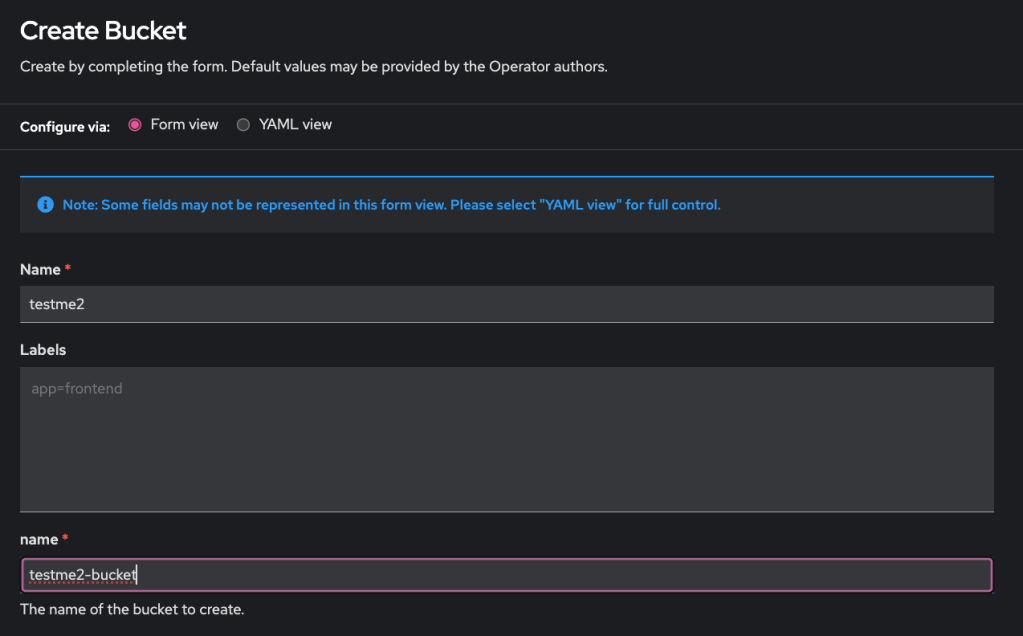
  • Enter the CR’s and the bucket’s name –> click Create at the bottom of the page.
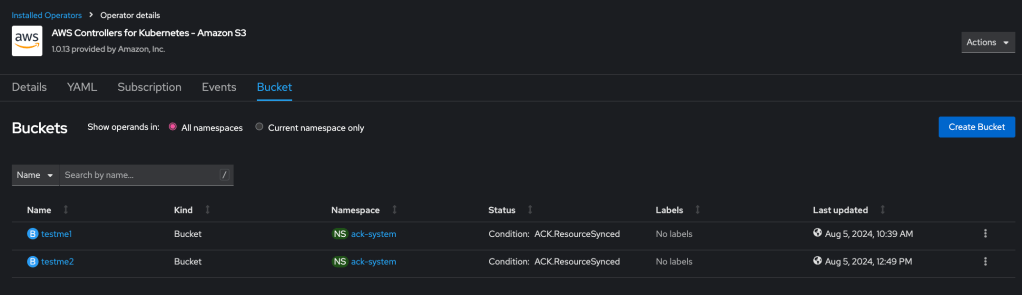
  • Bucket created
  • List it using AWS S3 CLI
$ aws s3 ls
2024-08-05 10:39:25 testme1
2024-08-05 12:49:13 testme2-bucket

Congratulation! You have created an S3 bucket via the ACK service controller.

Reference:

Running Virtual Machine on ROSA HCP

Out of curiosity, I want to see if I can run a virtual machine on my ROSA HCP cluster.

Create ROSA HCP

OCP 4.16.2 is now available on ROSA HCP. I created ROSA HCP cluster 4.16.2 for this test. Since I am following the ROSA documentation to create the ROSA HCP cluster, I share my commands here on how I create the cluster for this test. Please refer to the “Reference” section for the details.

$ rosa create account-roles --hosted-cp
$ export ACCOUNT_ROLES_PREFIX=ManagedOpenShift
$ rosa create oidc-config --mode=auto --yes
$ export OIDC_ID=xxxxxxxx
$ export OPERATOR_ROLES_PREFIX=demo
$ rosa create operator-roles --hosted-cp --prefix=$OPERATOR_ROLES_PREFIX --oidc-config-id=$OIDC_ID --installer-role-arn arn:aws:iam::${AWS_ACCOUNT_ID}:role/${ACCOUNT_ROLES_PREFIX}-HCP-ROSA-Installer-Role
$ rosa create cluster --sts --oidc-config-id 2ci6ntk6g92bq7qm21pvhfff1fp07li1 --operator-roles-prefix demo --hosted-cp --subnet-ids $SUBNET_IDS

After my cluster installation completes, log into Red Hat Hybrid Cloud Console to configure access for the cluster.

  • Click on the cluster name -> click on the “Access control” tab -> select htpasswd as the IDP to add a user
  • Click Add after entering the user information
  • Click “Add user” to add a cluster-admin as shown below
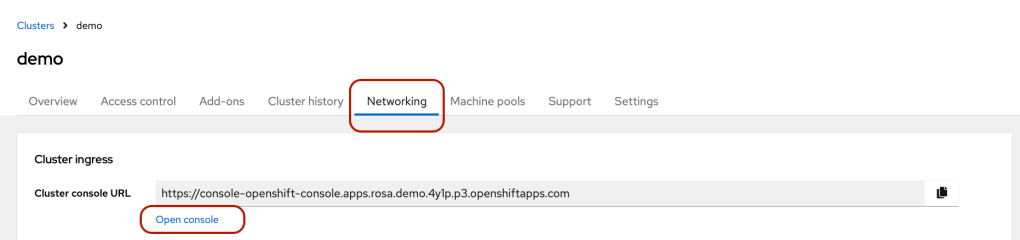
  • Go to the Network tab -> click “open console” and log in to the ROSA HCP cluster.

Install OpenShift Virtualization Operator

  • Once you log in as cluster admin to the OpenShift console -> Click Operators -> OperatorHub -> click OpenShift Virtualization -> Click “Install”
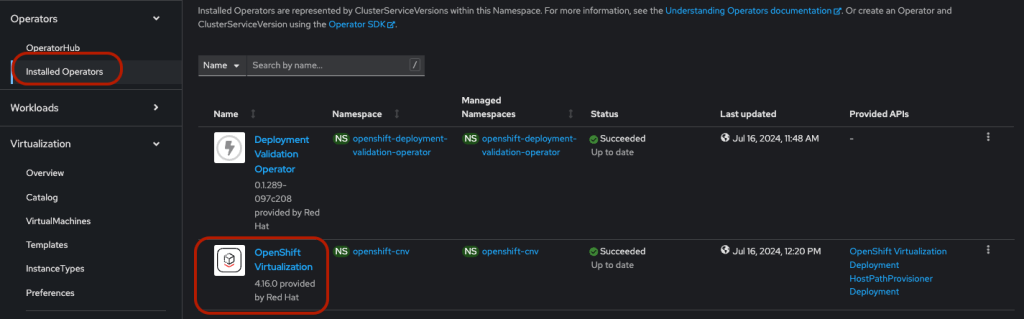
  • Click the “Installed Operators” on the left nav -> make sure the status show as “Succeed” for OpenShift Virtualization Operator.
  • Click “OpenShift Virtualization” -> OpenShift Virtualization Deployment -> Create HyperConverged CR using the YAML as shown below.
apiVersion: hco.kubevirt.io/v1beta1
kind: HyperConverged
metadata:
name: kubevirt-hyperconverged
namespace: openshift-cnv
annotations:
deployOVS: "false"
labels:
app: kubevirt-hyperconverged
spec:
applicationAwareConfig:
allowApplicationAwareClusterResourceQuota: false
vmiCalcConfigName: DedicatedVirtualResources
certConfig:
ca:
duration: 48h0m0s
renewBefore: 24h0m0s
server:
duration: 24h0m0s
renewBefore: 12h0m0s
evictionStrategy: LiveMigrate
featureGates:
alignCPUs: false
autoResourceLimits: false
deployKubeSecondaryDNS: false
deployTektonTaskResources: false
deployVmConsoleProxy: false
disableMDevConfiguration: false
enableApplicationAwareQuota: false
enableCommonBootImageImport: true
enableManagedTenantQuota: false
nonRoot: true
persistentReservation: false
withHostPassthroughCPU: false
infra: {}
liveMigrationConfig:
allowAutoConverge: false
allowPostCopy: false
completionTimeoutPerGiB: 800
parallelMigrationsPerCluster: 5
parallelOutboundMigrationsPerNode: 2
progressTimeout: 150
resourceRequirements:
vmiCPUAllocationRatio: 10
uninstallStrategy: BlockUninstallIfWorkloadsExist
virtualMachineOptions:
disableFreePageReporting: false
disableSerialConsoleLog: true
workloadUpdateStrategy:
batchEvictionInterval: 1m0s
batchEvictionSize: 10
workloadUpdateMethods:
- LiveMigrate
workloads: {}

Create Bare Metal MachinePool (with IMDSv2)

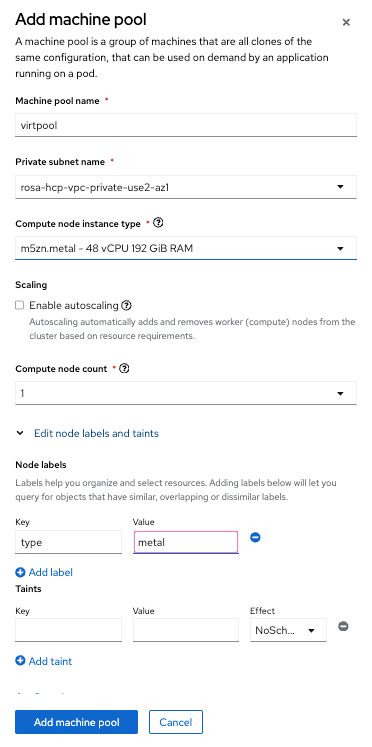
  • Enter a name, select the subnet, select m5zn.metal as the instance type, and add a label (type=metal). You will need to use the same label when creating VMs in the later step.

Making sure the bare metal EC2 instance is up

When the machine pool was first created, I saw the metal node was terminated. I enabled the IMDSv2 on the metal node, and the node can start.

Update Notes (09/2024): using ROSA CLI 1.2.43+, you can use ROSA CLI to create the machine pool with the flag --ec2-metadata-http-tokens=required. Then you will enable IMDSv2 at the creation. An Example of the command to create a machine pool via ROSA CLI is shown below.

rosa create machinepool --cluster=rosa-hcp --name=virt-mp   --replicas=1  --instance-type=m5zn.metal --ec2-metadata-http-tokens=required

Create a VM

Once the bare metal node is up, and the OpenShift virtualization operator is installed and configured successfully. You are ready to create a VM.

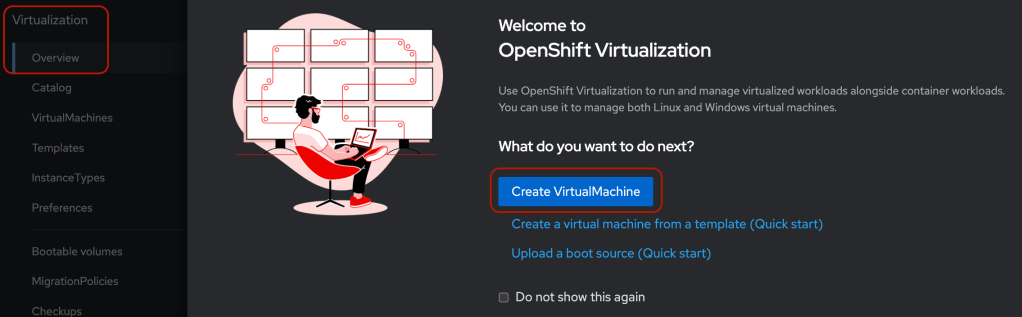
  • Go to the OpenShift console, select “Overview” under Virtualization on the left menu -> click “Create VirtualMachine”
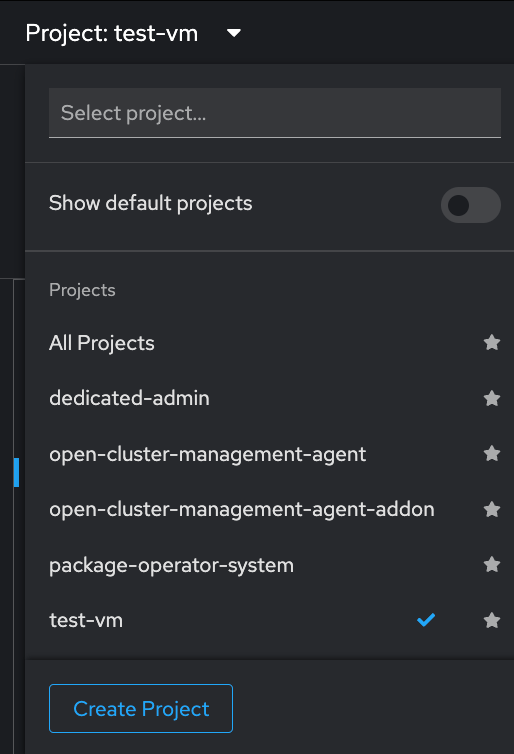
  • Create a new project and give a new of your project
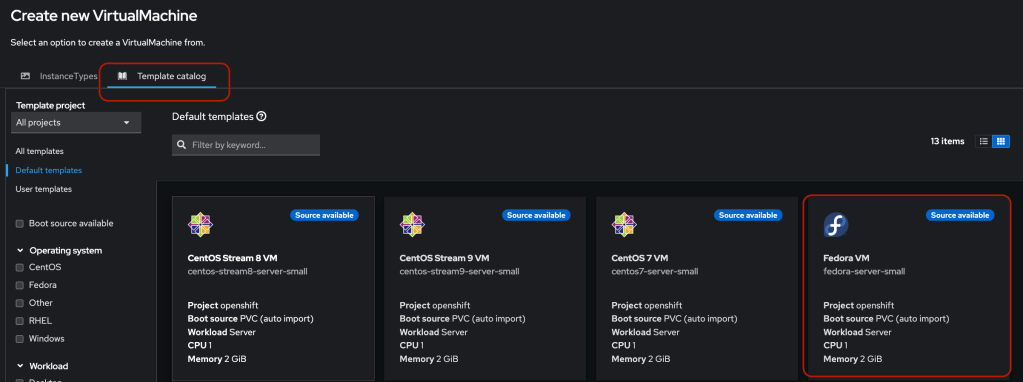
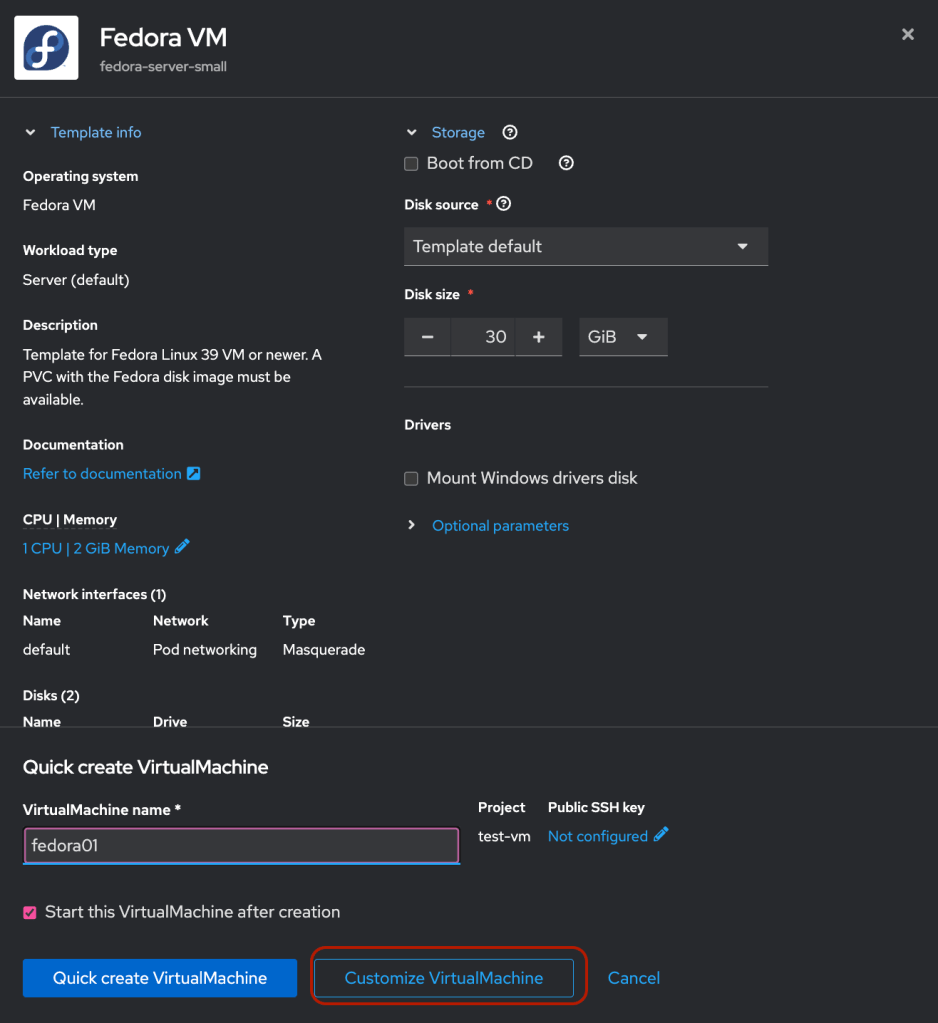
  • Click “Template catalog” -> Fedora VM
  • Click “Customize VirtualMachine”

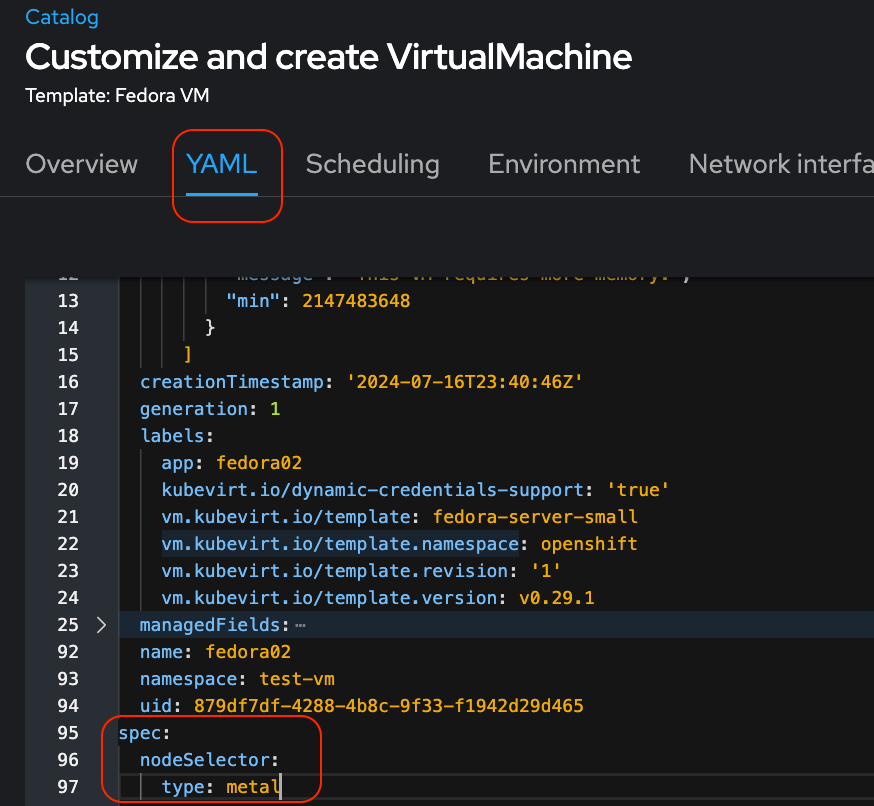
  • Click YAML tab and add nodeSelector with Label “type: metal”
  • Click “Create VirtualMachine”
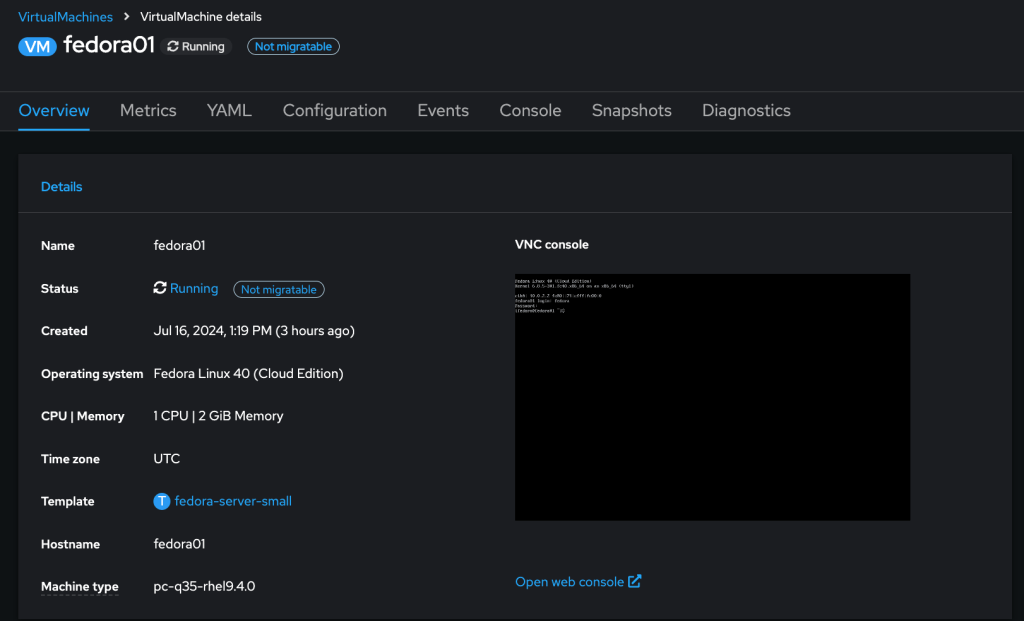
  • The VirtualMachine should be in running in a few minutes.

Reference:

Oops, I deleted my project on an Azure Red Hat OpenShift (ARO) cluster!

A customer ran into issues backing up and restoring their projects on the ARO cluster. So I figure it is time to run a quick test on this and see where the issues are. After testing for the customer, I decided to share my discovery from my test and hope to save time for others.

The use case is very simple here. We want to back up a project and restore the way things are if I delete the project.

My environment

  • ARO 4.12.25
  • Velero v1.11.1
  • Azure CLI 2.50

Set up ARO for test

  • Installing the ARO cluster is straightforward, and if you have the latest version of azure-cli, you can add ‘–version’ to specify the OpenShift version under the latest version supported in the ARO lifecycle [2].
  • Install or update the azure-cli version as shown.
$ az version
{
  "azure-cli": "2.50.0",
  "azure-cli-core": "2.50.0",
  "azure-cli-telemetry": "1.0.8",
  "extensions": {}
}
  • I followed the reference [1] to create an ARO cluster the 4.11.44 and upgrade to 4.12.25.
  • Deploy a stateful application to the cluster that uses Persistent Volume Claim (PVC).

Set up to run Velero

  • Install Velero CLI per [3]
$ velero version
Client:
Version: v1.11.1
Git commit: -
Server:
Version: v1.11.1
  • I followed the reference [3] to set up the Azure account and blob container.
  • Also, use the instruction to create a service principal for Velero to access the storage.

Now, we are ready to install Velero onto the ARO cluster

In the ARO backup and restore documentation [3], it uses “velero/velero-plugin-for-microsoft-azure:v1.1.0”. I learned I must use “velero/velero-plugin-for-microsoft-azure:v1.5.0” to restore my PVC data properly. My inspiration is from reference [5].

Here are the steps I did to backup & restore:

  • Add data to my application for testing. My application pod uses a PVC
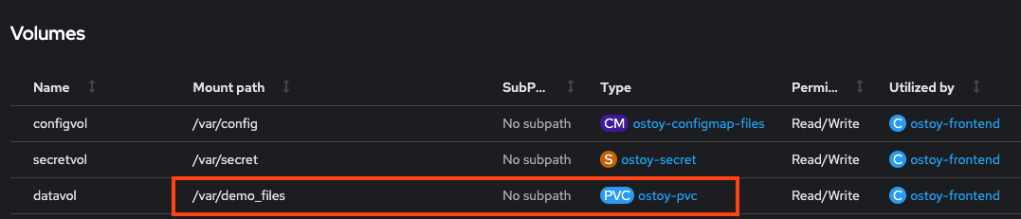
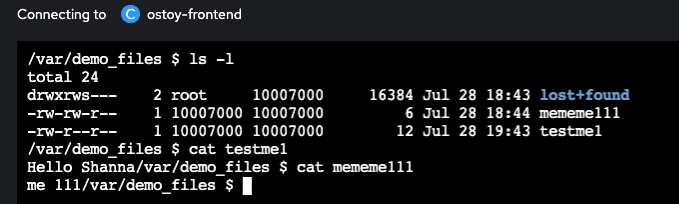
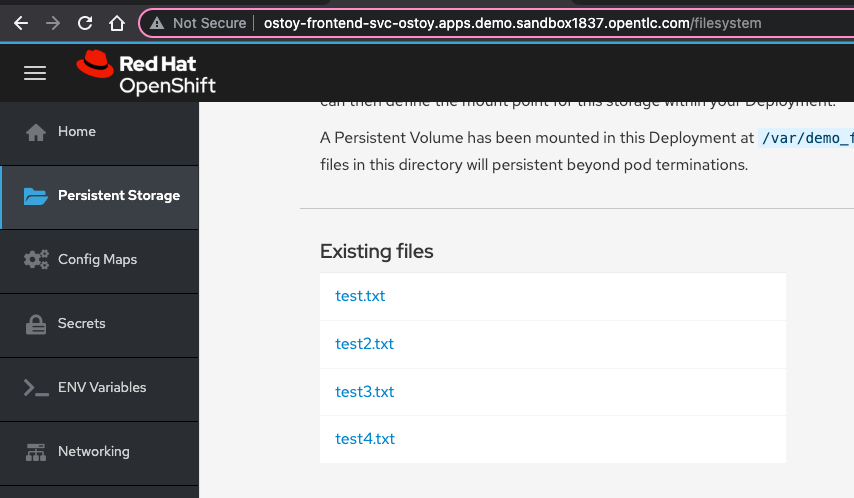
  • Files are added to the directory /var/demo_files
  • Now, I am ready to back up my application
$ velero backup create backup-2 --include-namespaces=ostoy --snapshot-volumes=true --include-cluster-resources=true
Backup request "backup-2" submitted successfully.
Run `velero backup describe backup-2` or `velero backup logs backup-2` for more details.

$ velero backup describe backup-2
Name:         backup-2
Namespace:    velero
Labels:       velero.io/storage-location=default
Annotations:  velero.io/source-cluster-k8s-gitversion=v1.25.11+1485cc9
              velero.io/source-cluster-k8s-major-version=1
              velero.io/source-cluster-k8s-minor-version=25

Phase:  Completed


Namespaces:
  Included:  ostoy
  Excluded:  <none>

Resources:
  Included:        *
  Excluded:        <none>
  Cluster-scoped:  included

Label selector:  <none>

Storage Location:  default

Velero-Native Snapshot PVs:  true

TTL:  720h0m0s

CSISnapshotTimeout:    10m0s
ItemOperationTimeout:  1h0m0s

Hooks:  <none>

Backup Format Version:  1.1.0

Started:    2023-07-28 13:06:42 -0700 PDT
Completed:  2023-07-28 13:07:06 -0700 PDT

Expiration:  2023-08-27 13:06:42 -0700 PDT

Total items to be backed up:  2089
Items backed up:              2089

Velero-Native Snapshots:  1 of 1 snapshots completed successfully (specify --details for more information)
  • Check if the backup is completed.
$ oc get backup backup-2 -n velero -o yaml
  • And the status will report as completed
status:
  completionTimestamp: "2023-07-28T20:07:06Z"
  expiration: "2023-08-27T20:06:42Z"
  formatVersion: 1.1.0
  phase: Completed
  • Now let’s delete the application
$ oc delete all --all -n ostoy; oc delete pvc ostoy-pvc; oc delete project ostoy
  • Let’s restore it from the backup-2
$ velero restore create restore-2 --from-backup backup-2
Restore request "restore-2" submitted successfully.
Run `velero restore describe restore-2` or `velero restore logs restore-2` for more details.

$ velero restore describe restore-2
Name:         restore-2
Namespace:    velero
Labels:       <none>
Annotations:  <none>

Phase:                                 InProgress
Estimated total items to be restored:  128
Items restored so far:                 100

Started:    2023-07-28 13:12:22 -0700 PDT
Completed:  <n/a>

Backup:  backup-2

Namespaces:
  Included:  all namespaces found in the backup
  Excluded:  <none>

Resources:
  Included:        *
  Excluded:        nodes, events, events.events.k8s.io, backups.velero.io, restores.velero.io, resticrepositories.velero.io, csinodes.storage.k8s.io, volumeattachments.storage.k8s.io, backuprepositories.velero.io
  Cluster-scoped:  auto

Namespace mappings:  <none>

Label selector:  <none>

Restore PVs:  auto

Existing Resource Policy:   <none>
ItemOperationTimeout:       1h0m0s

Preserve Service NodePorts:  auto
  • Let’s check if the restore is completed
$ oc get restore restore-2 -n velero -o yaml
  • Wait for the status shows as completed.
  • Now, we can check the project and application data are restored.
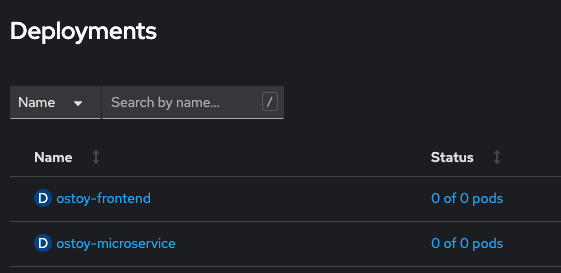
  • All pods are running, and the added data is restored below.

When using “velero/velero-plugin-for-microsoft-azure:v1.1.0” for Velero, I could not restore the data from the PVC. By using “velero/velero-plugin-for-microsoft-azure:v1.5.0” for Velero, I can now restore the application on the same ARO cluster and the application data.

Reference

Way too many alerts? Which alerts are important?

OpenShift provides ways to observe and monitor cluster health. When we have more clusters, we want to monitor all clusters from a centralized location. We can use Red Hat Advanced Cluster Management (RHACM) helps to manage and control all the clusters from a single console. Also, we can enable observability from ACM to observe all clusters from RHACM.

The biggest complaint I got is that we are getting so many alerts. How do we really know when and how to react to the alerts that my organization cares about?

This is my example of how I will start tackling the issue. I am going to share the steps here on how I set up my OpenShift environment to try to solve the problem.

Environment:

  • OpenShift 4.11
  • Red Hat Advanced Cluster Management Operator 2.7

My test environment

  • Install OpenShift 4.11
  • Install Red Hat Advanced Cluster Management Operator 2.7

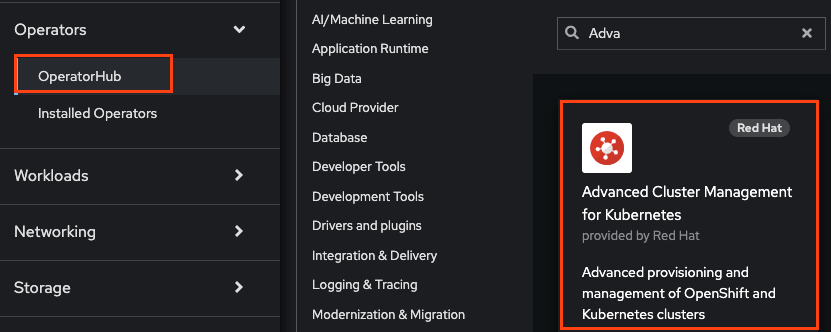
Click the OperatorHub from the OpenShift console left menu -> click on “Advanced Cluster Management for Kubernetes” Tile -> click install

  • Once RHACM is installed and create “MultiClusterHub” customer resource (CR)

Enable the Observability

  • Prepare an S3 bucket. In my case, I used AWS for my object storage.
aws s3 mb s3://shchan-acm
  • Create “open-cluster-management-observability” namespace
oc create namespace open-cluster-management-observability 
  • Create “pull-secret” in the namespace
DOCKER_CONFIG_JSON=`oc extract secret/pull-secret -n openshift-config --to=-`

oc create secret generic multiclusterhub-operator-pull-secret \
    -n open-cluster-management-observability \
    --from-literal=.dockerconfigjson="$DOCKER_CONFIG_JSON" \
    --type=kubernetes.io/dockerconfigjson
  • Create a YAML file as below and name it “thanos-object-storage.yaml.” The credential will need to have proper permission to access the bucket. I am using an IAM user that has full access to the bucket. See the reference section for permission details.
apiVersion: v1
kind: Secret
metadata:
  name: thanos-object-storage
  namespace: open-cluster-management-observability
type: Opaque
stringData:
  thanos.yaml: |
    type: s3
    config:
      bucket: shchan-acm
      endpoint: s3.us-east-2.amazonaws.com
      insecure: true
      access_key: xxxxxxxxxxxxxxxxx
      secret_key: xxxxxxxxxxxxxxxxxxxxxxxxxxxxxxxxxx
  • Create the secret for object storage
oc create -f thanos-object-storage.yaml -n open-cluster-management-observability
  • Create MultiClusterObservability customer resource in a YAML file, multiclusterobservability_cr.yaml.
apiVersion: observability.open-cluster-management.io/v1beta2
kind: MultiClusterObservability
metadata:
  name: observability
spec:
  observabilityAddonSpec: {}
  storageConfig:
    metricObjectStorage:
      name: thanos-object-storage
      key: thanos.yaml
  • Run the following command to create the CR
oc apply -f multiclusterobservability_cr.yaml

Create custom rule

The use case here is to get a notification for a given issue when it happens. Since every alert is sent to the same notifier. It is not easy to react to the important alert.

  • Create a “kube-node-health” group for alerting when any node is down for any reason. Create a Configmap “thanos-ruler-custom-rules” with the following rules in the open-cluster-management-observability namespace. Add “custom_rules.yaml” in the data section of the YAML file. Noted that I added “tag: kubenode” in the labels section. Note that it can be any label. This is just an example.
data:
 custom_rules.yaml: |
   groups:
     - name: kube-node-health
       rules:
       - alert: NodeNotReady
         annotations:
           summary: Notify when any node on a cluster is in NotReady state
           description: "One of the node of the cluster is down: Cluster {{ $labels.cluster }} {{ $labels.clusterID }}."
         expr: kube_node_status_condition{condition="Ready",job="kube-state-metrics",status="true"} != 1
         for: 5s
         labels:
           instance: "{{ $labels.instance }}"
           cluster: "{{ $labels.cluster }}"
           clusterID: "{{ $labels.clusterID }}"
           tag: kubenode
           severity: critical
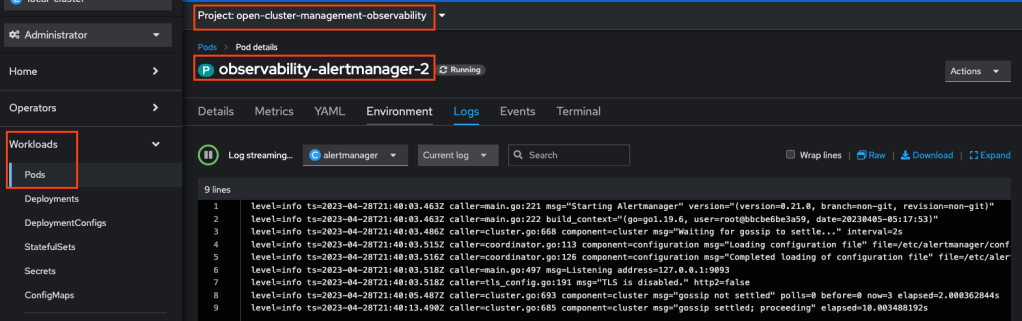
  • You can view the logs from one of the alert manager pods to monitor if the rules are applied correctly. You can check if the log has any errors.

To test the alert from the ACM console

  • Shut down one worker node
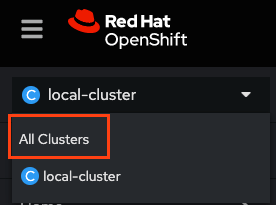
  • Go to ACM
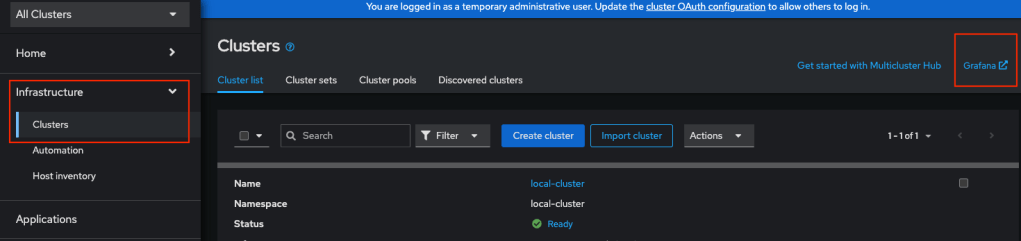
  • Click Infrastucture -> Cluster -> Grafana
  • Login the grafana dashboard
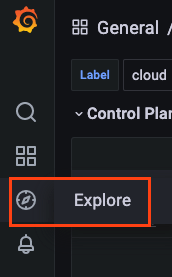
  • Click “Explore”
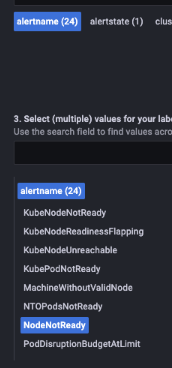
  • Click “Metrics browser to expand
  • Select “alertname” and all the and “NodeNotReady” alert shows up under the list
  • Here the alert was fired because one of the nodes was down.

Let’s configure the alert manager

We want to send this “NodeNotReady” alert to a specific Slack channel.

  • Extract the data from the “alertmanager-config secret.
oc -n open-cluster-management-observability get secret alertmanager-config --template='{{ index .data "alertmanager.yaml" }}' |base64 -d > alertmanager.yaml
  • Edit the alert-manager.yaml file as the following example. Note that I have 2 Slack channels for 2 receivers, respectively. One for the specific “tag: kubenode” alert and the other one for all the rest alerts.
"global":
  "slack_api_url": "https://hooks.slack.com/services/TDxxxx3S6/B0xxxxZLE2D/BN35PToxxxxmRTRxxxxN6R4"

"route":
  "group_by":
  - "alertname"
  "group_interval": "5m"
  "group_wait": "30s"
  "repeat_interval": "12h"
  "receiver": "my-team"
  "routes":
  - "match":
      "tag": "kubenode"
    "receiver": "slack-notification"

"receivers":
- "name": "slack-notification"
  "slack_configs":
  - "api_url": "https://hooks.slack.com/services/TDxxxx3S6/B0xxxxUK7B7/vMtVpxxxx4kESxxxxeDSYu3"
    "channel": "#kubenode"
    "text": "{{ range .Alerts }}<!channel> {{ .Annotations.summary }}\n{{ .Annotations.description }}\n{{ end }}"


- "name": "my-team"
  "slack_configs":
  - "api_url": "https://hooks.slack.com/services/TDxxxx3S6/B0xxxxZLE2D/BN35PToxxxxmRTRxxxxN6R4"
    "channel": "#critical-alert"
    "text": "{{ .GroupLabels.alertname }}"
  • Save the alertmanager.yaml and replace the secret.
oc -n open-cluster-management-observability create secret generic alertmanager-config --from-file=alertmanager.yaml --dry-run=client -o=yaml |  oc -n open-cluster-management-observability replace secret --filename=-
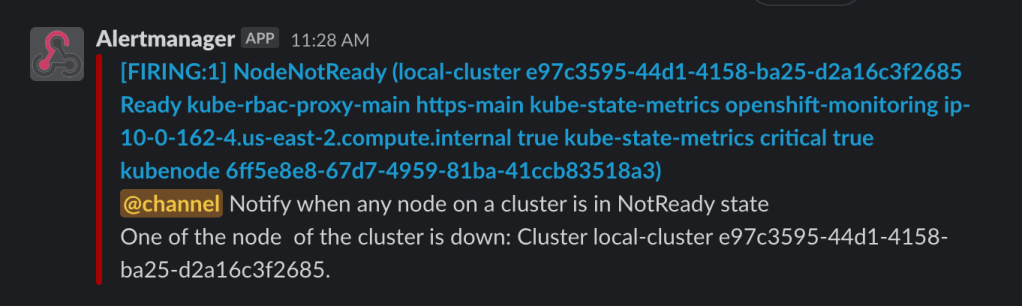
  • When the Node is shut down, a message should show in the slack channel like the one below.
  • You will also see many alerts show up on the other channel, like the one below.

The idea here is to get meaningful alerts to the team and know what to do with the alerts.

The next is to continue to refine the customer rules and alert manager configuration per the needs.

Reference

Application Data Replication

My use case is to replicate the stateful Springboot application for disaster recovery. The application runs on OpenShift, and we want to leverage the existing toolsets to solve this problem. If it is just replicating the data from one data center to another, it should be super simple, right? In this blog, I share my journey of picking my solution.

The requirements are:

  • No code change
  • Cannot use ssh to copy the data
  • Cannot run the pod for replication using privileged containers
  • Must meet the security requirements

Solution 1: Writing the data to object storage

The simplest solution would be to have the application write the data to an object bucket, so we can mirror the object storage directly. However, it requires code changes for all the current applications.

Solution 2: Use rsync replication with VolSync Operator

We tested will the rsync-based replication using VolSync Operator. This will not be a good choice because it violates security policies on using SSH and UID 0 within containers.

Solution 3: Use rsync-tls replication with VolSync Operator

This is the one that meets all the requirements, and I am testing it out.

My test environment includes the following:

  • OpenShift (OCP) 4.11
  • OpenShift Data Foundation (ODF) 4.11
  • Advanced Cluster Security (ACS) 3.74.1
  • VolSync Operator 0.70

Setup

  • Install two OCP 4.11 clusters
  • Install and configure ODF on both OCP clusters
  • Install and configure ACS central on one of the cluster
  • Install and configure ACS secured cluster on both cluster
  • Install VolSync Operator on both clusters
  • Install a sample stateful application

Configure the rsync-tls replication CRs on the source and destination clusters

On the secondary cluster, under the namespace of the application

  • Click “Installed Operators” > VolSync
  • Click the “Replication Destination” tab
  • Click “Create ReplicationDestination” and select the “Current namespace only” option
  • On the Create ReplicationDestination screen, select YAML view
  • Replace the only “spec” section in the YAML with the below YAML
spec:
 rsyncTLS:
   accessModes:
     - ReadWriteMany
   capacity: 1Gi
   copyMethod: Snapshot
   serviceType: LoadBalancer
   storageClassName: ocs-storagecluster-cephfs
   volumeSnapshotClassName: ocs-storagecluster-cephfsplugin-snapclass

Notes:
The serviceType is LoadBalancer. see Reference [2] for more details on picking the Service Type. Since I am using ODF, ocs-storagecluster-cephfs and ocs-storagecluster-cephfsplugin-snapclass are the storageClassName and volumeSnapshotClassName, respectively.

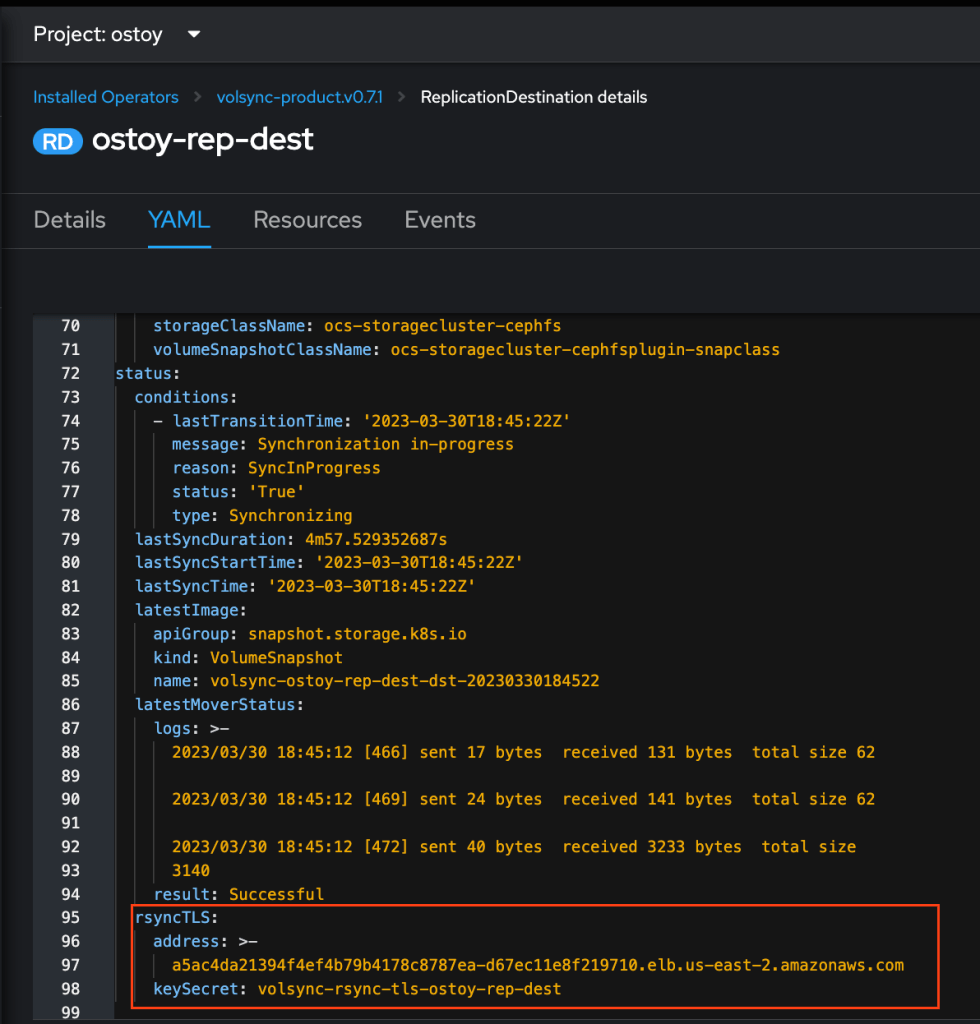
  • Check the status from the ReplicationDestination CR; the update should be similar, as shown below.
status:
 conditions:
   - lastTransitionTime: '2023-03-29T06:02:42Z'
     message: Synchronization in-progress
     reason: SyncInProgress
     status: 'True'
     type: Synchronizing
 lastSyncStartTime: '2023-03-29T06:02:07Z'
 latestMoverStatus: {}
 rsyncTLS:
    address: >-
      a5ac4da21394f4ef4b79b4178c8787ea-d67ec11e8f219710.elb.us-east-2.amazonaws.com
    keySecret: volsync-rsync-tls-ostoy-rep-dest

Notes:
We will need the value of the address and the keySecret under the “rsyncTLS” section to set up the source cluster for replication.

  • Copy the keySecret from the destination cluster to the source cluster
  • Log in to the destination cluster, and run the following command to create the psk.txt file.
oc extract secret/volsync-rsync-tls-ostoy-rep-dest --to=../ --keys=psk.txt -n ostoy
  • Log in to the source cluster, and execute the following command to create the keySecret.
oc create secret generic volsync-rsync-tls-ostoy-rep-dest --from-file=psk.txt -n ostoy
  • Now you are ready to create the ReplicationSource.
  • Log in to your source cluster from the UI
  • Click “Installed Operators” > VolSync
  • Click the “Replication Source” tab
  • Click “Create ReplicationSource” and select the “Current namespace only” option
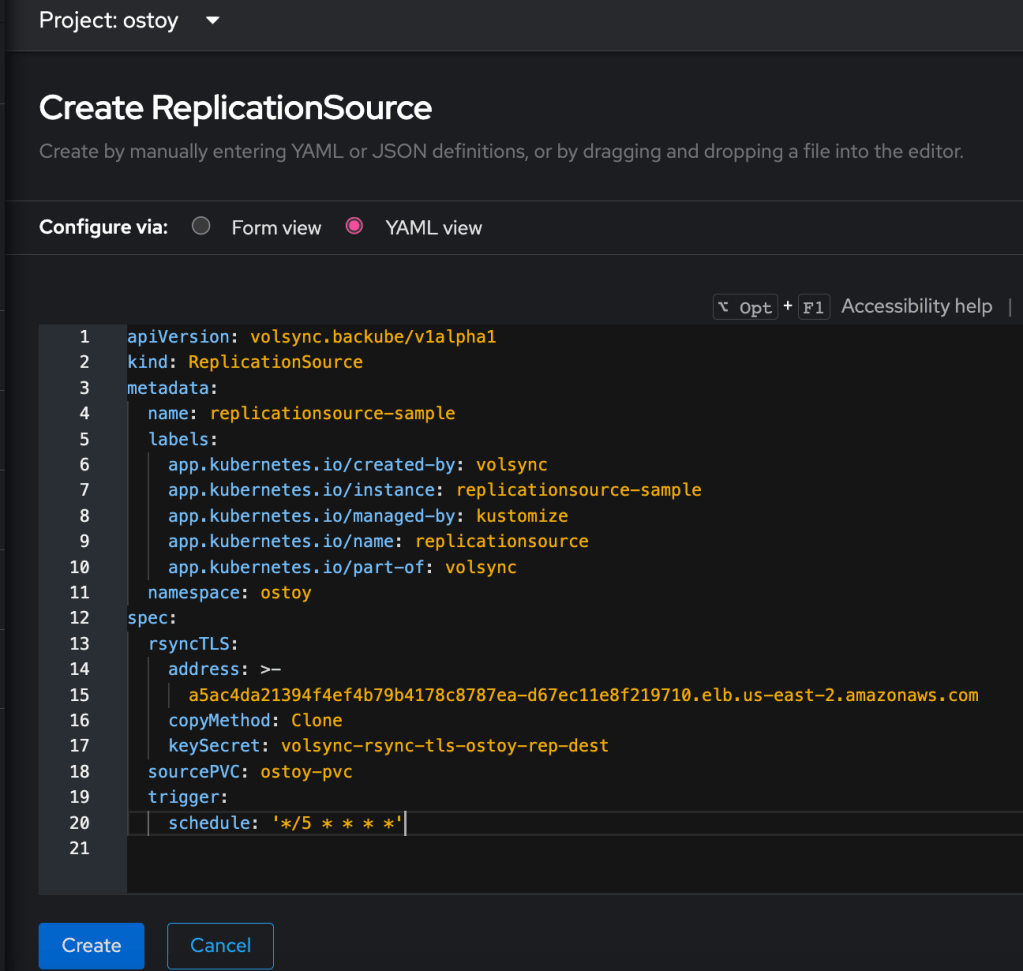
  • On the Create ReplicationSource screen, select YAML view
  • Replace the only “spec” section in the YAML with the below YAML
spec:
  rsyncTLS:
    address: >-
      a5ac4da21394f4ef4b79b4178c8787ea-d67ec11e8f219710.elb.us-east-2.amazonaws.com
    copyMethod: Clone
    keySecret: volsync-rsync-tls-ostoy-rep-dest
  sourcePVC: ostoy-pvc
  trigger:
    schedule: '*/5 * * * *'

I am using the address that was provided to me from the status of the ReplicationDestination CR and using the same keySecret that was from the destination.

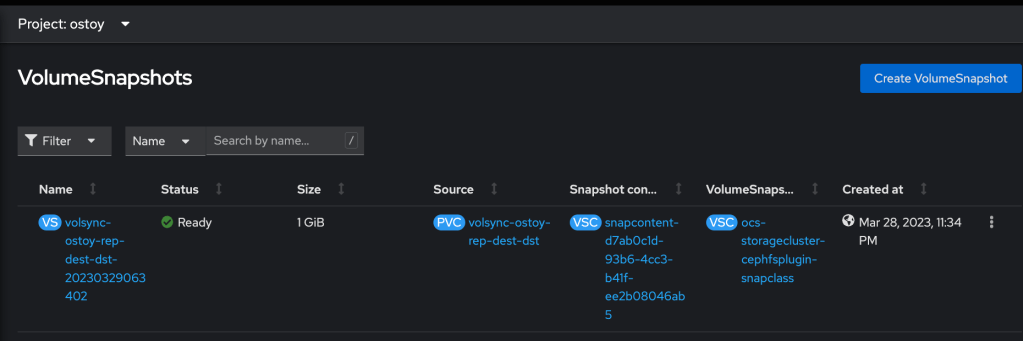
  • On the destination OCP console, click “Storage” > VolumeSnapShots, and you will see a snapshot has been created.

  • Click “PersistentVolumeClaims”. There is a copy PVC from the source created under the namespace where you create your ReplicationDestination CR. Note the name of the PVC “volsync-ostoy-rep-dest-dst” here.
  • Let’s add some new content to the application on the source cluster.
  • Scale down the deployment for this application on the source
  • On the destination cluster, ensure the application uses “volsync-ostoy-rep-dest-dst” as the PVC in the deployment.
  • Deployment of the sample application on the Destination
  • Check the application and verify the new content was copied to the Destination.
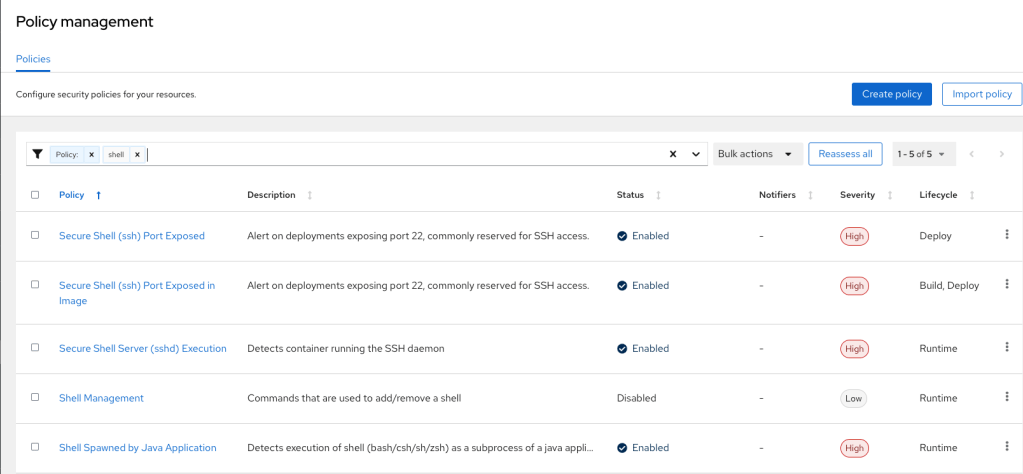
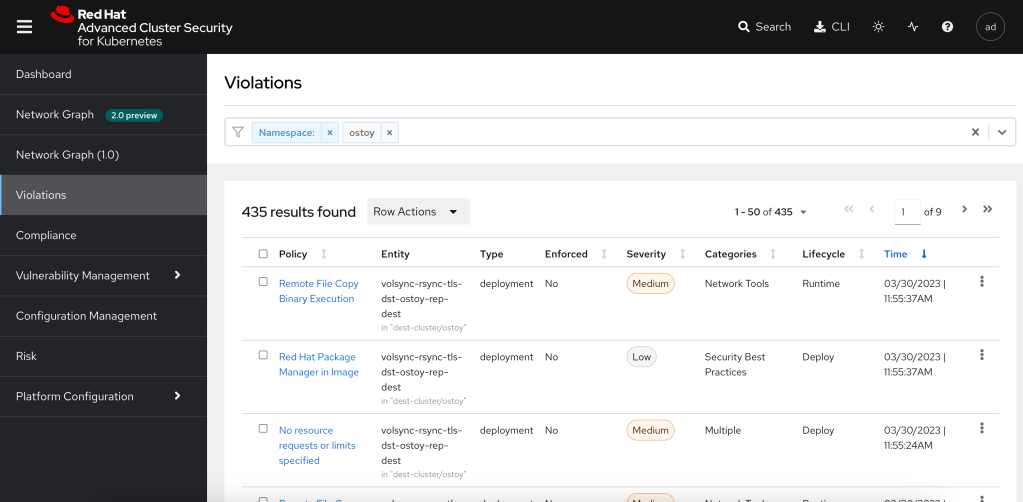
  • The last task is verifying if the solution violates policies using SSH and UID 0.
  • Log in to the ACS console and enable the related policies.
  • Check if any related policies are violated under the application namespace and search by namespace from the violation menu.

References:

Getting Started on OpenShift Compliance Operator

There are many documents out there on the OpenShift Compliance Operator. I share this with customers who want to learn how to work with OpenShift Operator and helped them to get started on the OpenShift Compliance Operator.

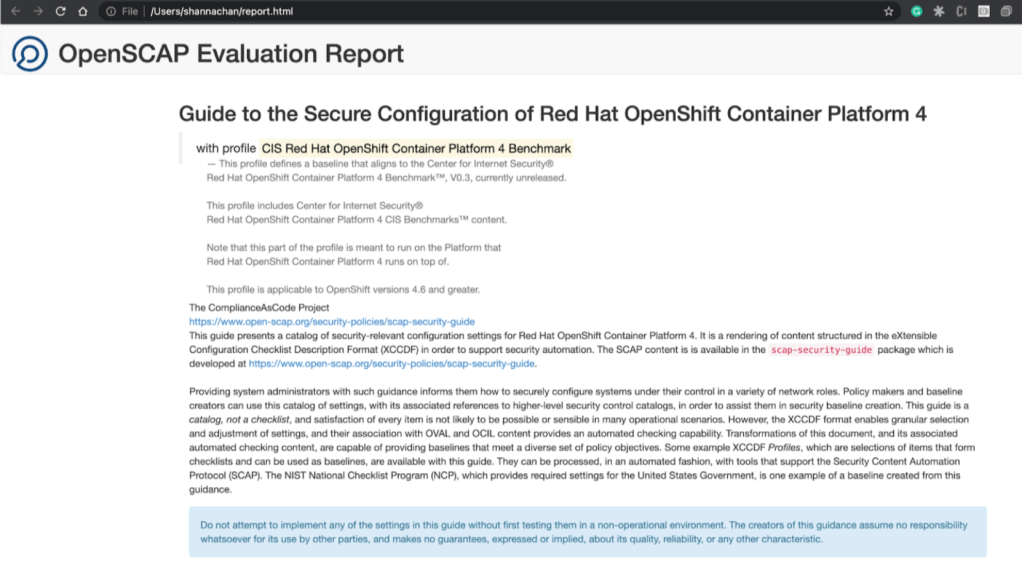
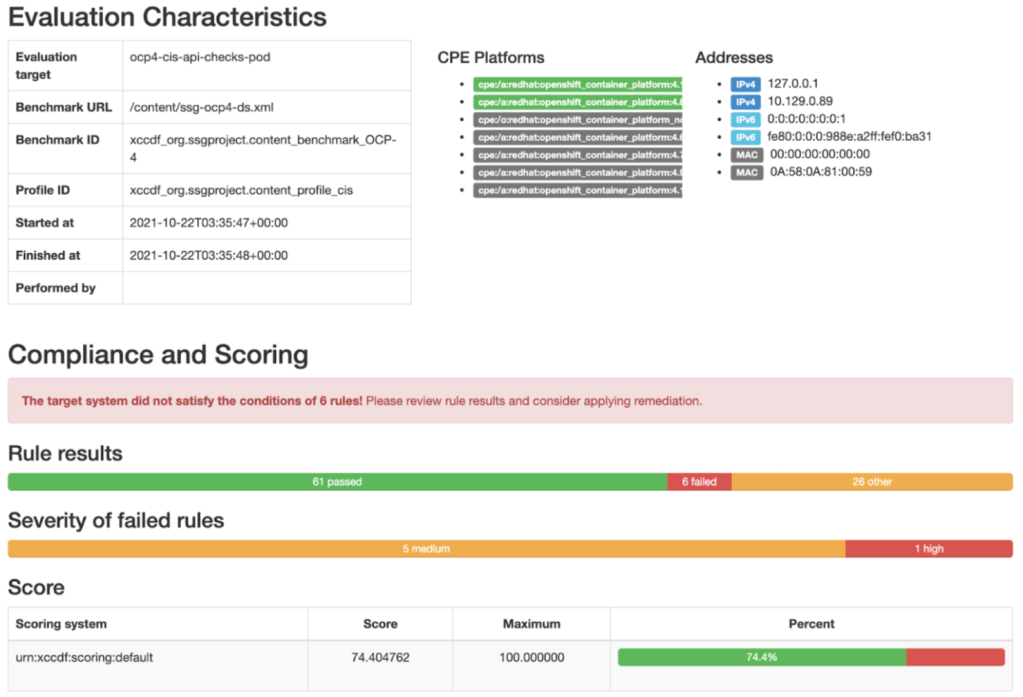
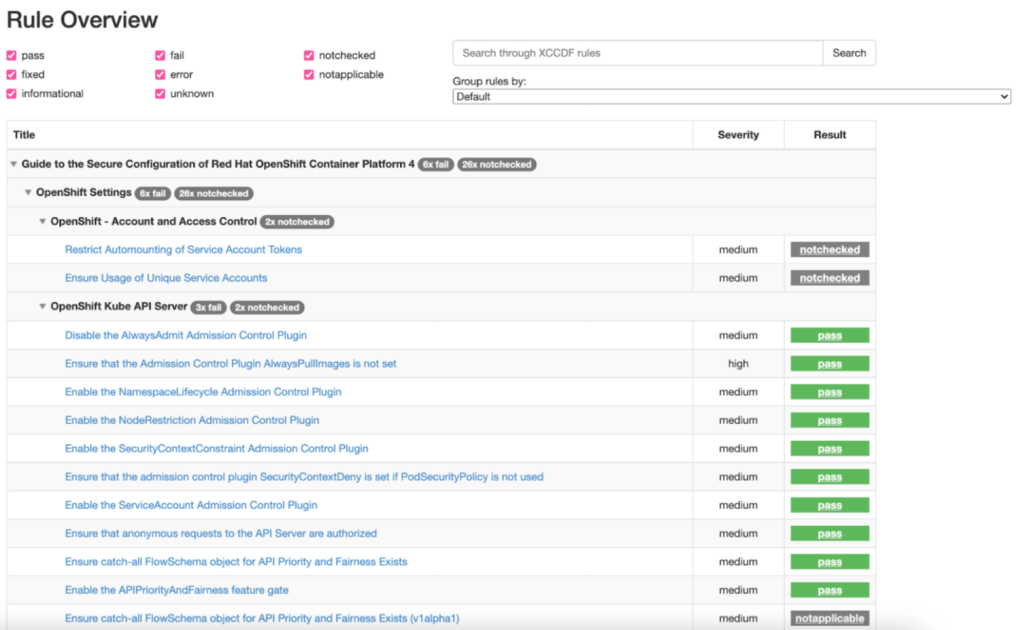
In this blog, I will walk you through how to generate the OpenSCAP evaluation report using the OpenShift Compliance Operator.

OpenShift Compliance Operator can be easily installed on OpenShift 4 as a security feature with the OpenShift Container Platform. The Compliance Operator uses OpenSCAP, a NIST-certified tool, to scan and enforce security policies provided by the content.

Prerequisites

Overview

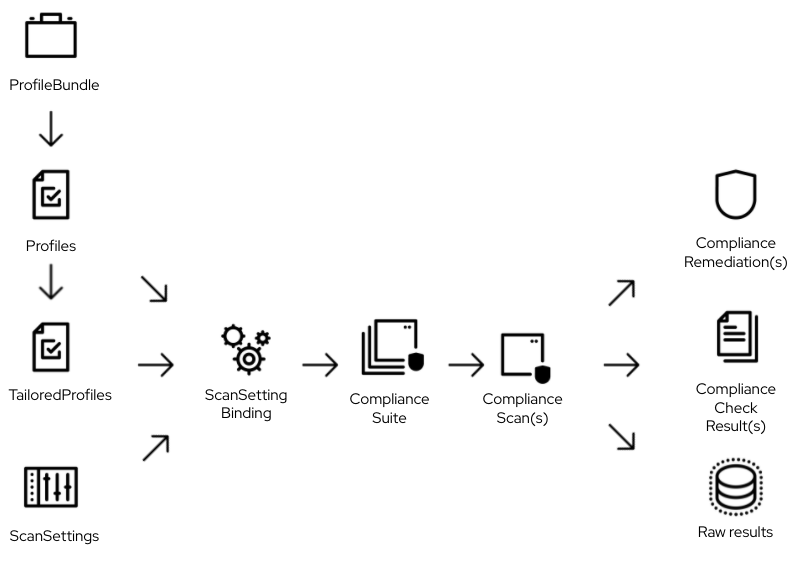
The compliance operator uses many custom resources. The diagram below helps me to understand the relationship between all the resources. In addition, the OpenShift documentation has details about the Compliance Operator custom resources.

Steps to Generate OpenSCAP Evaluation Report

Some default custom resources come as part of the compliance operator installation, such as ProfileBunble, Profiles, and ScanSetting.

First, we need to create the ScanSettingBinding, which defines the Profiles and the ScanSetting. The ScanSettingBinding tells Compliance Operator to evaluate for Profile(s) A with the specific scan setting.

  • Log in OpenShift Cluster
# oc login -u <username> https://api.<clusterid>.<subdomain>
# oc project openshift-compliance
  • The default compliance profiles will be available once the operator is installed. The command below lists out all compliance profiles Custom Resource Definition (CRD) profiles.compliance.openshift.io.
# oc get profiles.compliance.openshift.io
  • To get custom resource ScanSetting via the below command. It shows two default scan settings.
# oc get ScanSetting
NAME                 AGE
default              2d10h
default-auto-apply   2d10h
  • Check out the “default” ScanSetting
Name:         default
Namespace:    openshift-compliance
Labels:       <none>
Annotations:  <none>
API Version:  compliance.openshift.io/v1alpha1
Kind:         ScanSetting
Metadata:
  Creation Timestamp:  2021-10-19T16:22:18Z
  Generation:          1
  Managed Fields:
...
  Resource Version:  776981
  UID:               f453726d-665a-432e-88a9-a4ad60176ac7
Raw Result Storage:
  Pv Access Modes:
    ReadWriteOnce
  Rotation:  3
  Size:      1Gi
Roles:
  worker
  master
Scan Tolerations:
  Effect:    NoSchedule
  Key:       node-role.kubernetes.io/master
  Operator:  Exists
Schedule:    0 1 * * *
Events:      <none>
  • Create ScanSettingBinding as shown in scan-setting-binding-example.yaml below.
# cat scan-setting-binding-example.yaml
apiVersion: compliance.openshift.io/v1alpha1
kind: ScanSettingBinding
metadata:
  name: cis-compliance
profiles:
  - name: ocp4-cis-node
    kind: Profile
    apiGroup: compliance.openshift.io/v1alpha1
  - name: ocp4-cis
    kind: Profile
    apiGroup: compliance.openshift.io/v1alpha1
settingsRef:
  name: default
  kind: ScanSetting
  apiGroup: compliance.openshift.io/v1alpha1
  • Create the above sample ScanSettingBinding custom resource.
# oc create -f scan-setting-binding-example.yaml
  • Verify the creation of the ScanSettingBinding
# oc get scansettingbinding
  • Custom resource ComplianceSuites is to help tracking the state of the scans. The following command is to check the state of the scan you defined in your ScanSettingBinding.
# oc get compliancesuite
NAME             PHASE     RESULT
cis-compliance   RUNNING   NOT-AVAILABLE
  • ComplianceScan custom resource needs all the parameters to run OpenSCAP, such as profile id, image to get the content from, and data stream file path. It also can constain operational parameter.
# oc get compliancescan
NAME                   PHASE   RESULT
ocp4-cis               DONE    NON-COMPLIANT
  • While the custom resource ComplianceCheckResult shows the aggregate result of the scan, it is useful to review the raw result from the scanner. The raw results are produced in the ARF format and can be large. Therefore, Compliance Operator creates a persistent volume (PV) for the raw result from the scan. Let’s take a look if the PVC is created for the scan.
# oc get pvc
NAME                   STATUS   VOLUME                                     CAPACITY   ACCESS MODES   STORAGECLASS   AGE
ocp4-cis               Bound    pvc-5ee57b02-2f6b-4997-a45c-3c4df254099d   1Gi        RWO            gp2            27m
ocp4-cis-node-master   Bound    pvc-57c7c411-fc9f-4a4d-a713-de91c934af1a   1Gi        RWO            gp2            27m
ocp4-cis-node-worker   Bound    pvc-7266404a-6691-4f3d-9762-9e30e50fdadb   1Gi        RWO            gp2            28m
  • Once we know the raw result is created, we need the oc-compliance tool to get the raw result XML file. You will need to login to the registry.redhat.io.
# podman login -u <user> registry.redhat.io
  • Download the oc-compliance tool
podman run --rm --entrypoint /bin/cat registry.redhat.io/compliance/oc-compliance-rhel8 /usr/bin/oc-compliance > ~/usr/bin/oc-compliance
  • Fetch the raw results to a temporary location (/tmp/cis-compliance)
# oc-compliance fetch-raw scansettingbindings cis-compliance -o /tmp/cis-compliance
Fetching results for cis-compliance scans: ocp4-cis-node-worker, ocp4-cis-node-master, ocp4-cis
Fetching raw compliance results for scan 'ocp4-cis-node-worker'.....
The raw compliance results are available in the following directory: /tmp/cis-compliance/ocp4-cis-node-worker
Fetching raw compliance results for scan 'ocp4-cis-node-master'.....
The raw compliance results are available in the following directory: /tmp/cis-compliance/ocp4-cis-node-master
Fetching raw compliance results for scan 'ocp4-cis'...........
The raw compliance results are available in the following directory: /tmp/cis-compliance/ocp4-cis
  • Inspect the output filesystem and extract the *.bzip2 file
# cd /tmp/cis-compliance/ocp4-cis
# ls
ocp4-cis-api-checks-pod.xml.bzip2

# bunzip2 -c  ocp4-cis-api-checks-pod.xml.bzip2  > /tmp/cis-compliance/ocp4-cis/ocp4-cis-api-checks-pod.xml

# ls /tmp/cis-compliance/ocp4-cis/ocp4-cis-api-checks-pod.xml
/tmp/cis-compliance/ocp4-cis/ocp4-cis-api-checks-pod.xml
  • Convert ARF XML to html
# oscap xccdf generate report ocp4-cis-api-checks-pod.xml > report.html
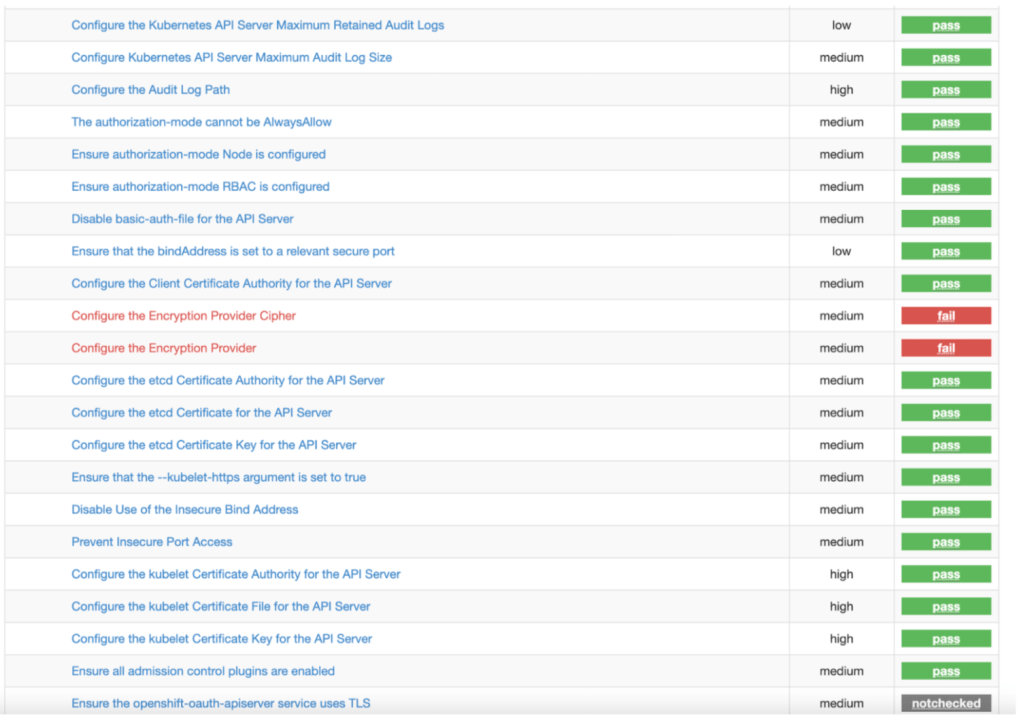
  • View the HTML as shown below.

Reference

Thank you Juan Antonio Osorio Robles for sharing the diagram!